
Once a viewing has happened, close it out. Marking it complete records what the client thought of each listing. No-show and cancelled keep the record honest for the deal and for your dashboard.
Mark a viewing complete
-
Open Activities and click the viewing, in the table or on the calendar. Activity Details opens.
-
Click Mark as Completed.
-
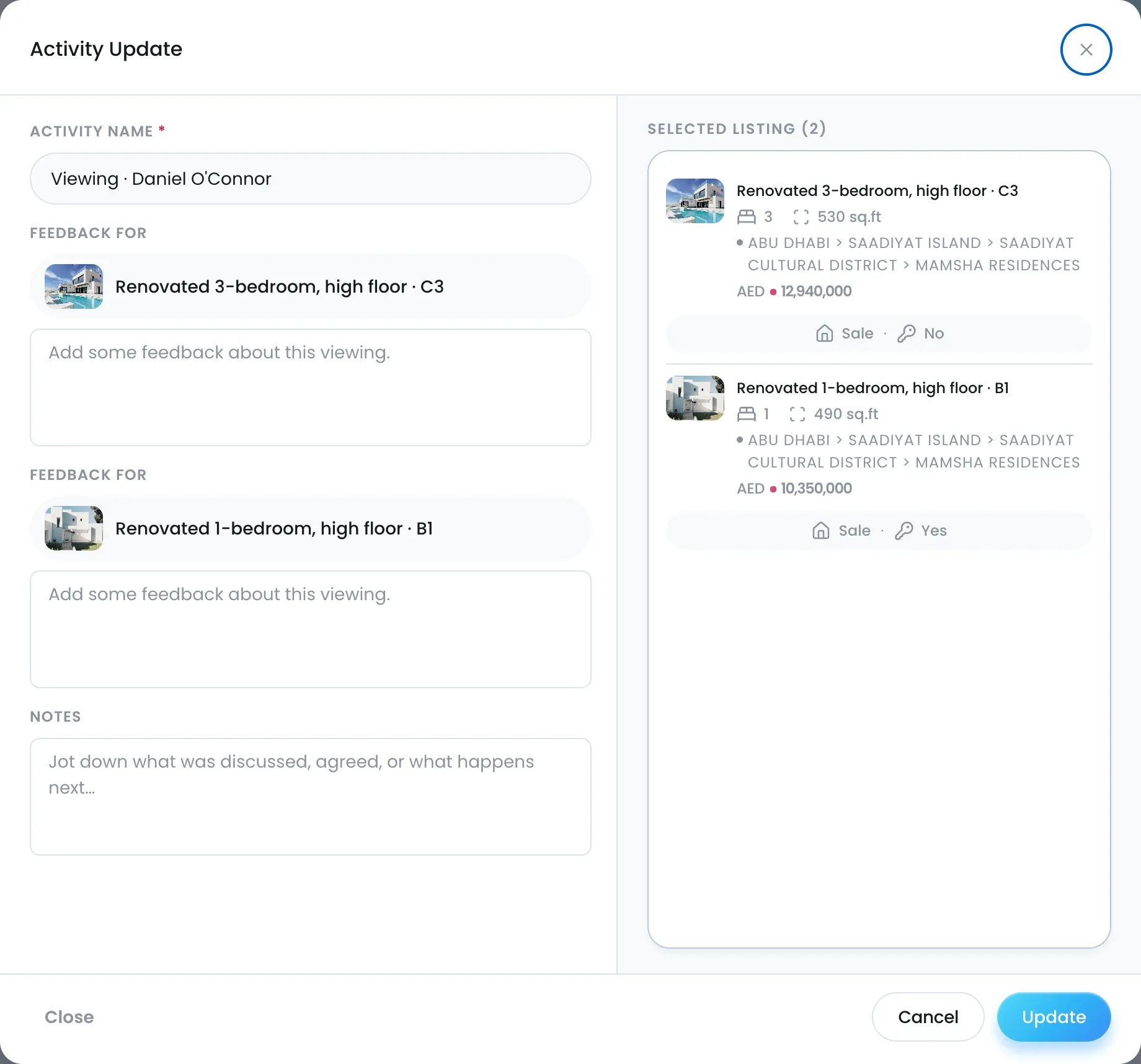
Under Feedback for, write the client’s reaction to each listing.
-
Add Notes on what happens next.
-
Click Update.
The status changes to Completed, and the feedback appears under each listing wherever the viewing shows.
Mark a no-show or cancel
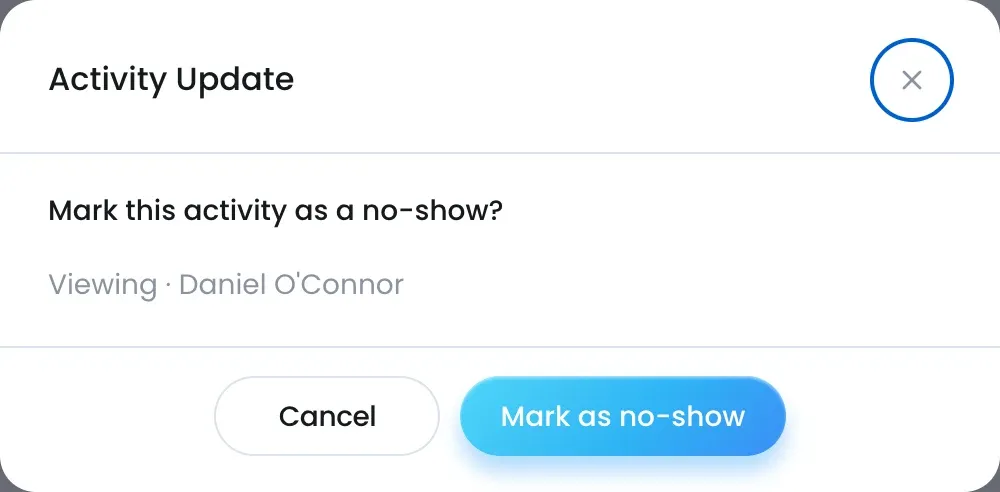
- Click Mark as No-show and confirm.
- Click Mark as Cancelled, add a Reason if you have one, and confirm. The reason shows on the activity afterwards.
From the deal page
Viewings on a deal also show on its Scheduled Viewing tab. If the client wants to proceed, add an offer on the deal. See Create, accept or counter an offer.
Where the feedback shows up
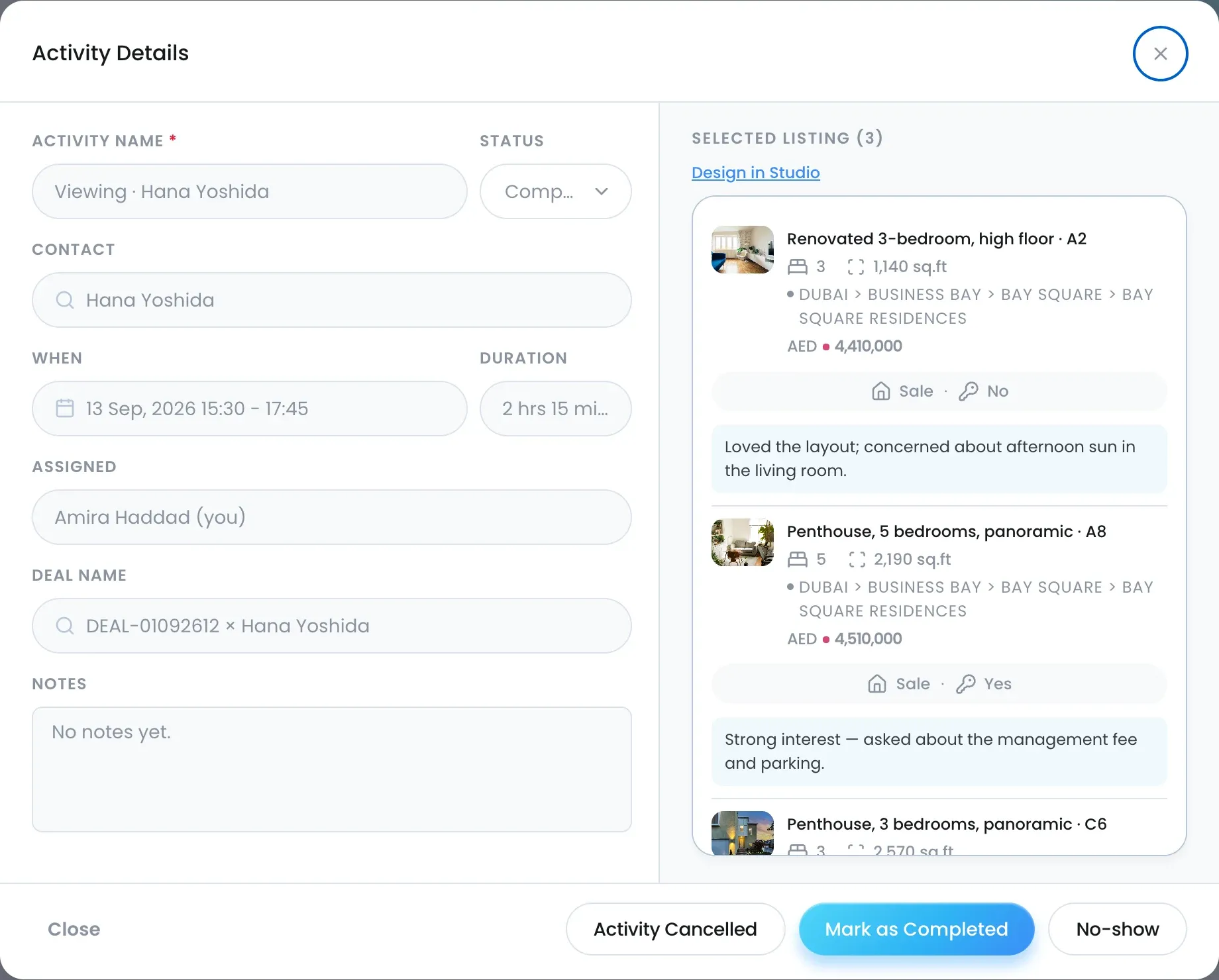
- Activity Details, under each listing.
- The deal’s Scheduled Viewing tab.
- The activity table.

