
A listing has one photo gallery, with separate slots for floor plans and files. You add them all in the listing wizard.
Before you start
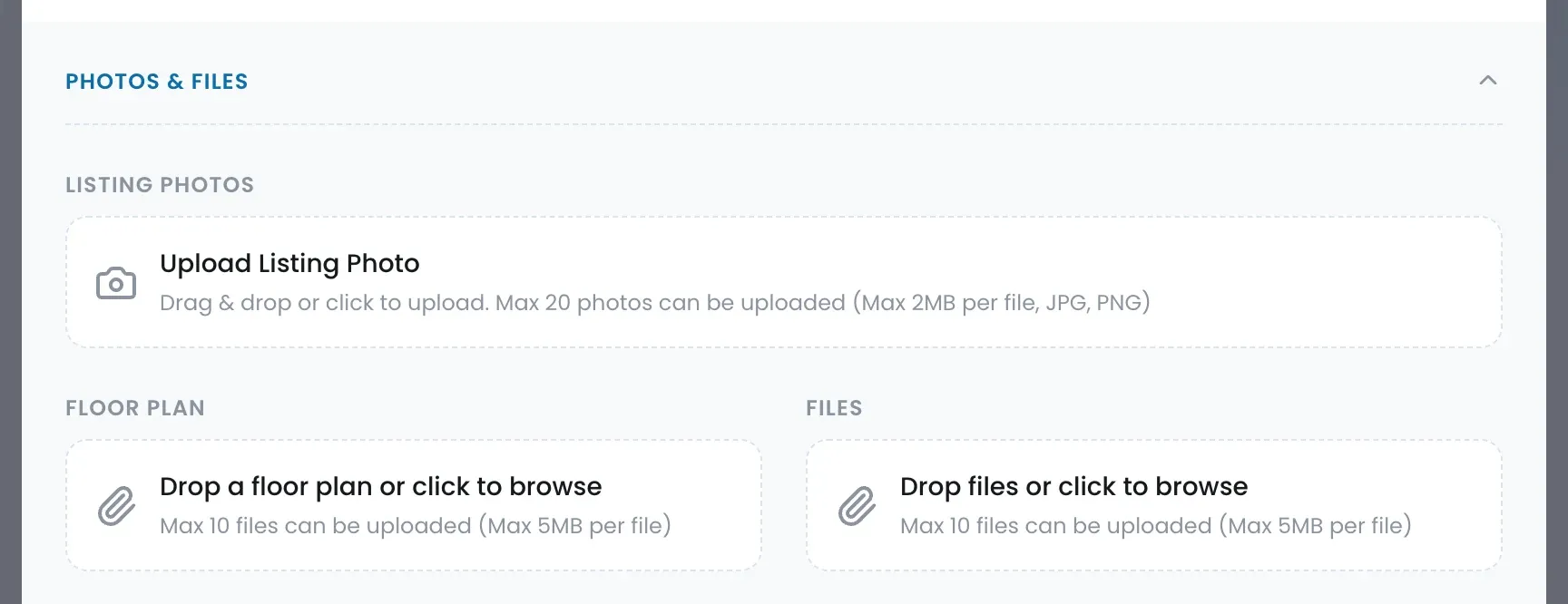
- Photos are JPG or PNG, up to 2 MB each, and a listing holds up to 20.
- Floor plans go in their own slot: up to 10 files, 5 MB per file. Documents go under Files.
Add photos
- Open the listing and choose Edit from the ⋯ menu. For a new listing, click Create Listing on the Listings page instead.
- Go to Step 2: Listing Details and scroll down to Photos & Files.
- Add your listing photos.
- Add the plan under Floor Plan and any documents, such as the brochure, under Files.
- Click Save & Next. For a new listing, finish with Publish.
On the listing page, floor plans and files sit under Notes & Files.
Where else the photos show up
Studio sales sheets and Page Builder pages built from this listing start from the same gallery, so you never upload a photo twice.

