
When AI Match has found the right homes for a client, or you’ve built a shortlist by hand in Manual Match, the campaign is one click away. Lukkio creates it with the listings attached, the client as recipient and a public share link already generated. You don’t rebuild the list in the email editor.
Before you start
- A match list with at least one matched listing, or a Manual Match folder with listings in it.
- To email the client: Gmail or Outlook connected under Settings → Email Settings, and an email address on their contact record. Without one, the campaign is still created and still gets its share link.
Create the campaign from AI Match
- Open Listing Match. The page opens on AI Match.
- Click the client’s match list to open it.
- Check Matched Listings. Remove a listing with the × on its row, or add one with Add listing.
- Click Create Campaign & Share Listings.
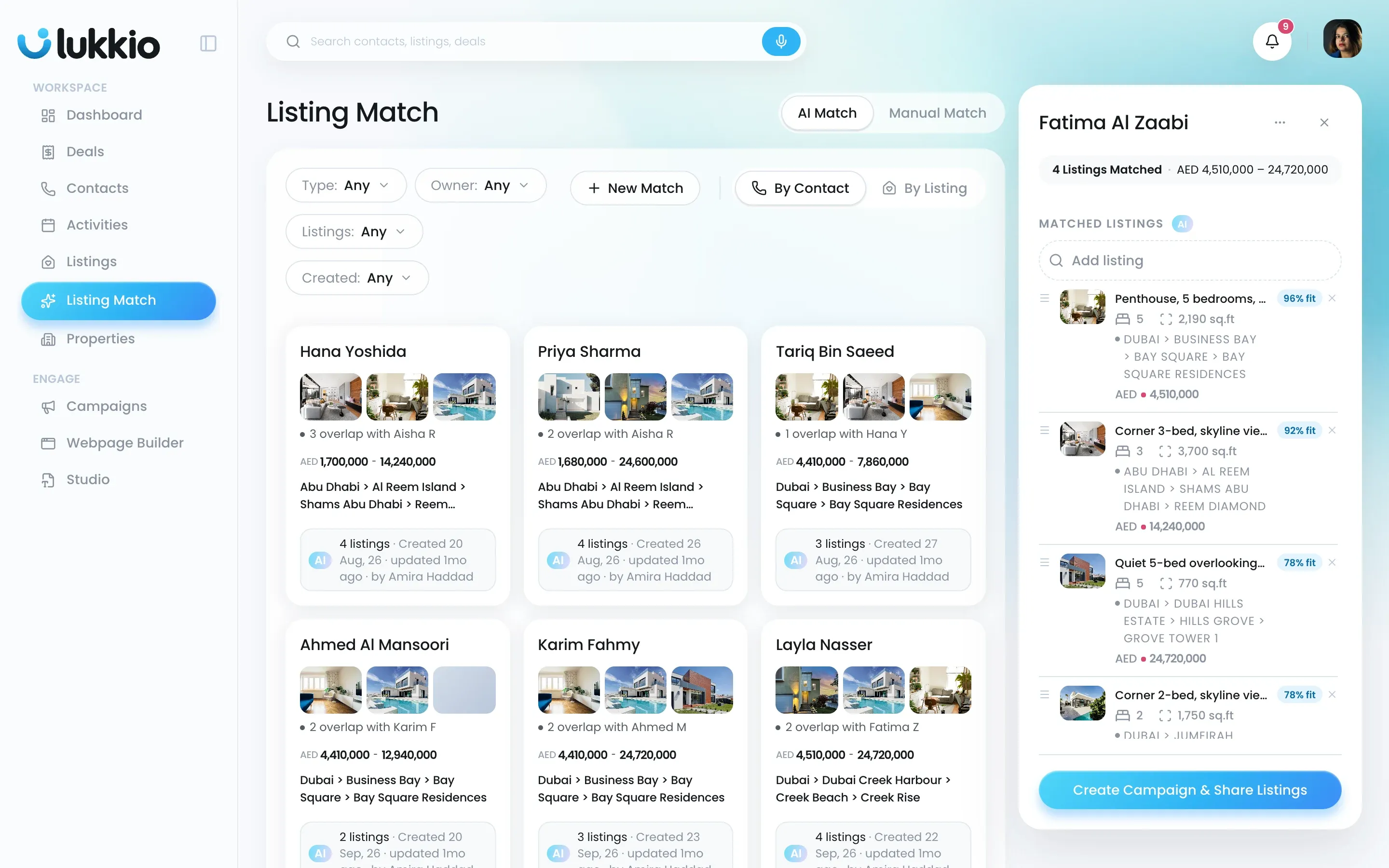
- In the Create Campaign confirmation, copy the link.
Lukkio creates a Draft campaign named with today’s date and the client’s name, attaches the matched listings, adds the client as recipient and generates the share link.
Create the campaign from a Manual Match folder
- Open Listing Match and click Manual Match.
- Open the folder.
- Click Create Campaign & Share Listings.
The rest is the same as for AI Match.
Finish the email
The campaign opens in the editor with the listings already placed in an AI Match template.
- Open Basic Info on the right.
- Check Sent to. The client is already there.
- Change the Subject if the one Lukkio filled in doesn’t fit.
- Click Save.
- Click Send, or use Schedule on to choose a date and time.
Where it shows up
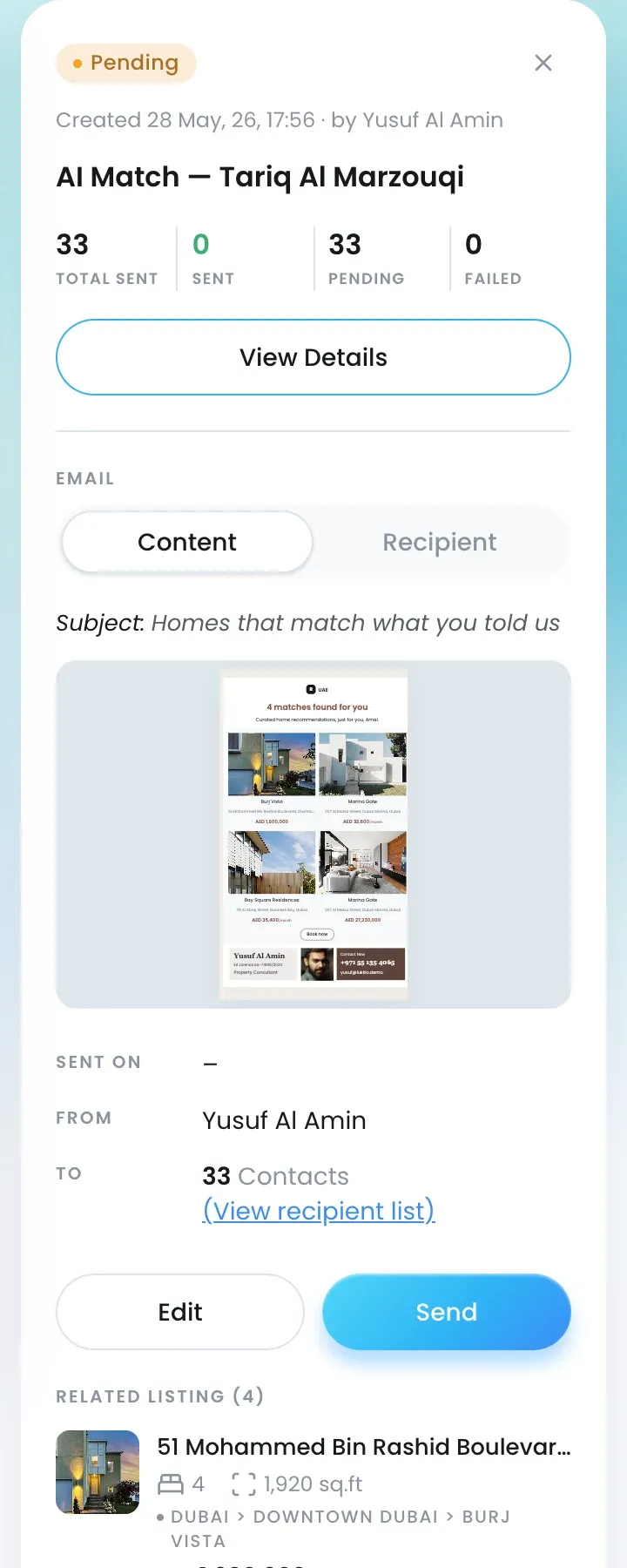
Open Campaigns and click the row. The panel shows the status, how many contacts it goes to and the related listings.
To send the client the link on WhatsApp instead of email, see Share a campaign link.

