
Writing the email is usually the slow part. In the campaign editor you describe the email once and get three drafts to choose from. Then you drop in merge fields, so every recipient reads their own name, budget and preferred location instead of “Dear client”.
Before you start
- A draft campaign you can edit.
- Listings attached to the campaign if you want the drafts to mention them. The AI reads the campaign’s related listings.
Generate a draft
- Open Campaigns, click the ⋯ on the campaign row and click Edit.
- Click a text block in the email. The Insert Dynamic Data panel opens on the right with the block’s text under Matched data; click AI Generate at the bottom of the panel. The AI bar opens above the email. On the Plain Text tab, AI Generate sits on the formatting bar above the email instead.
- Type what the email is for in Briefly describe the content of your email.
- Click Generate.
- Move between the drafts with the arrows next to 1 of 3.
- Click Keep.
The draft replaces the text in the block. Edit it like any other text.
Insert merge fields
A merge field is a placeholder, such as the contact’s Name, that fills in each recipient’s own data.
- Click a spacer or divider block in the email. The Insert Dynamic Data panel lists the fields. On the Plain Text tab, click into the text where the field should go instead.
- Under Data from, choose Contacts or Listings.
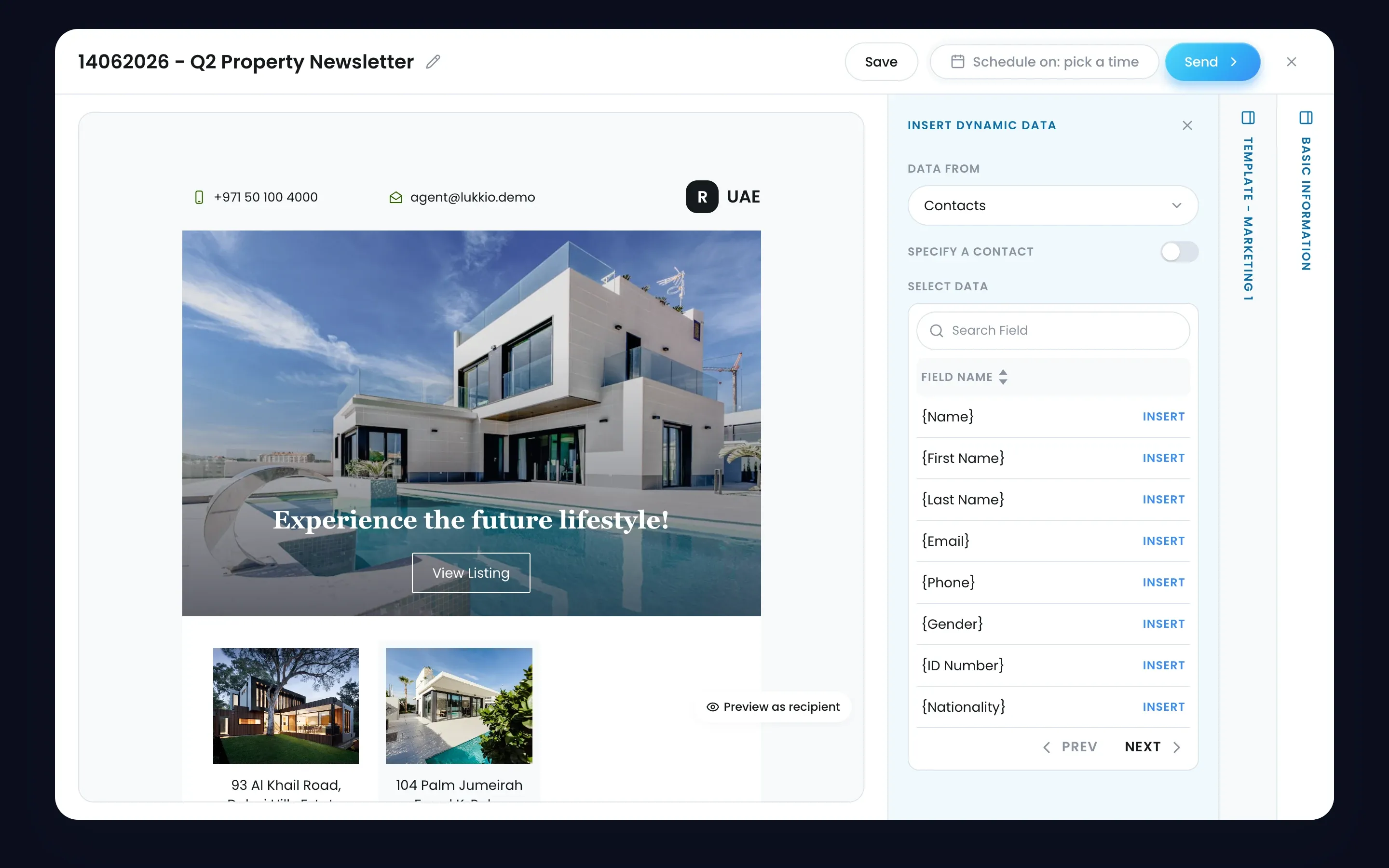
- Find the field and click Insert. Contacts lists the fields as placeholders with a Search Field box; Listings shows each field with its current value, and Select data picks which of the campaign’s listings. Prev and Next page through the list.
The field lands in the email’s first text block, or at the cursor on the Plain Text tab. Edit around it like any other text.
| Data from | Fields you can insert |
|---|---|
| Contacts | Name, Email, Phone, Budget Range, Size Range, No. of Bedroom, No. Of Bathroom, Preferred Location, Preferred View |
| Listings | Listing Name, Listing Description, Property Type, Property Name, Listing Price, Built-up Area, Unit Name, Floor, View, Furnishing Type, No. Of Bedroom, No. Of Bathroom, No. Of Living Room |
Budget Range and Preferred Location come from the contact’s buyer or tenant profile, so they’re only filled for contacts who have one. See Buyer, tenant and landlord profiles explained.
Save and send
Connect your Gmail or Outlook account first, under Settings → Email Settings.
- In Basic Info, check the Subject and Sent to.
- Click Save.
- Click Send, or use Schedule on to choose a date and time.

