
A shared link opens a public page with the listings you chose from Listing Match. The client needs no login, can pick the homes they like and ask for a viewing, and the request lands back in Lukkio. Each link belongs to a campaign, so you can see how many times the page has been viewed.
Sharing starts from Listing Match, from either an AI Match or one of your Manual Match folders. You can’t share from a listing’s page or the listings list.
Before you start
- The client is a contact in Lukkio.
Share from an AI Match
- Open Listing Match. AI Match opens first.
- Click the client’s card. Their matched listings open on the right, best fit first.
- Click × to drop a listing, or Add listing to bring one in.
- Click Create Campaign & Share Listings.
- Copy the link from the Create Campaign confirmation and send it on WhatsApp, by text or in your own email.
Share a Manual Match folder
Save the listings in a Manual Match folder first. Bookmark each one from the ribbon on its card or the bookmark button on its page.
- Open the listing and click the bookmark button at the top right of the page.
- Tick the folder to save it into, or click + New Folder, enter a Name and click Save to Manual Match.
- Open Listing Match and switch to Manual Match.
- Open the folder. The panel lists the bookmarked listings; remove any you don’t want to send.
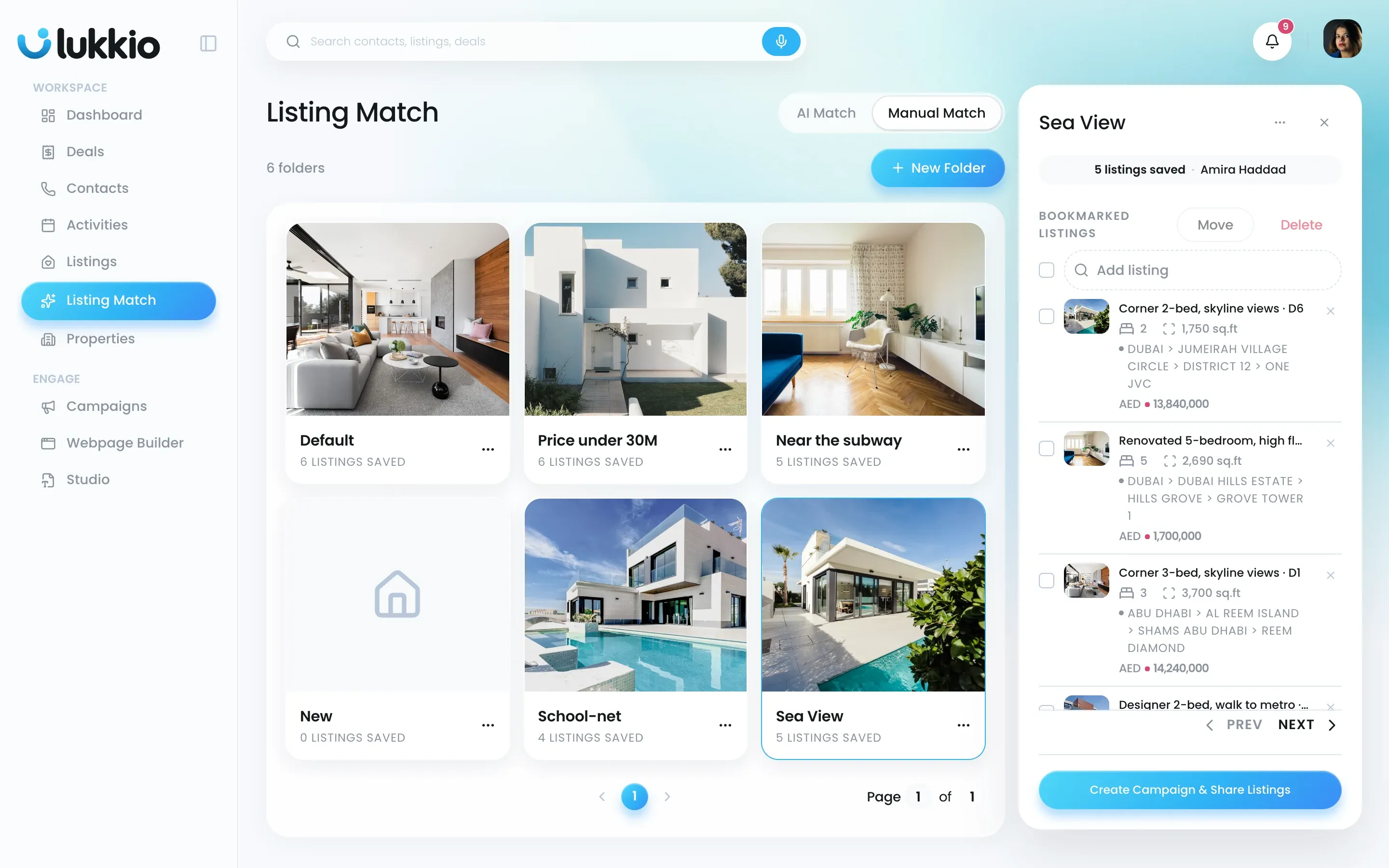
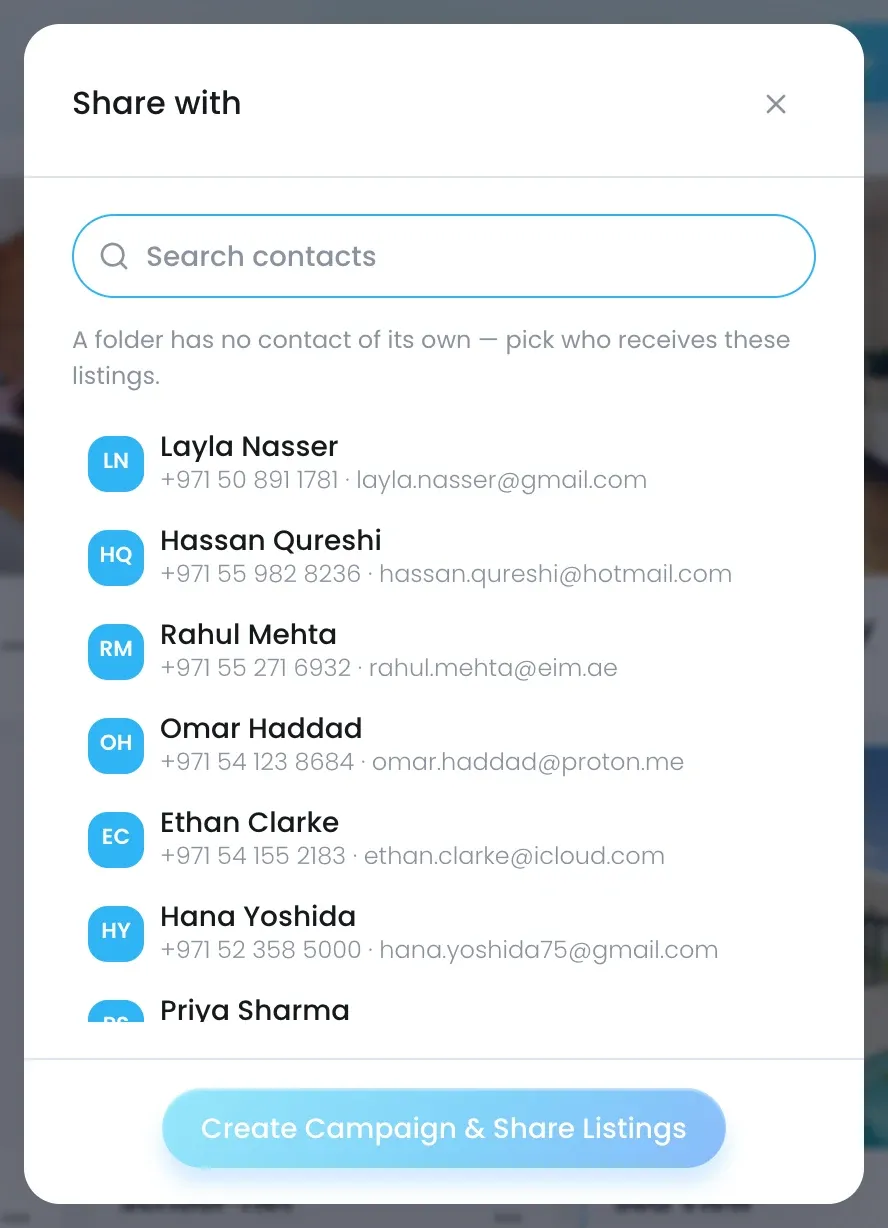
- Click Create Campaign & Share Listings.
- Pick the contact who should receive the listings.
- Copy the link from the Create Campaign confirmation and send it on WhatsApp, by text or in your own email.
What the client sees
- The page shows only the listings you sent: photos, title, location, rooms, size and price.
- The client clicks Add to viewings on the homes they like, then Schedule Viewing and picks their availability.
Nothing internal is on the page: no landlord details, commission, deposit or internal notes.
Track views and viewing requests
- Open the listing. The Campaigns & Shared Links section lists every link the listing is on, who it went to, and how many times the page has been viewed.
- When a client sends a viewing request you get an email, and the request appears on the Activities viewing-request page, where you create the viewing or cancel the request (see Handle viewing requests from shared links).
When a link expires
Links expire on their own. The agent who created a link, a Team Lead or a Super Admin can also revoke it early. Once a link has expired, or the listing is sold, leased or deleted, the page shows that it’s no longer available. To share the listings again, create a fresh link.

