
The point of a landing page is the form at the bottom. A visitor leaves their name and a way to reach them. The enquiry lands on the page’s Contact Form tab, and from there you turn it into a contact in one click.
Set up the form
- Open the page in the editor.
- Scroll to the bottom and click the enquiry form section (Enquire Form in the panel).
- Type the Button Label.
- Click Save. On a live page, click Publish & Get Link to put the change live.
The form asks for the visitor’s name, email and phone, and on some templates a message. The agent shown above the form, with licence, email and phone, is the one you picked for the page.
Read the enquiries
- Open Webpage Builder and click the page.
- Click the Contact Form tab.
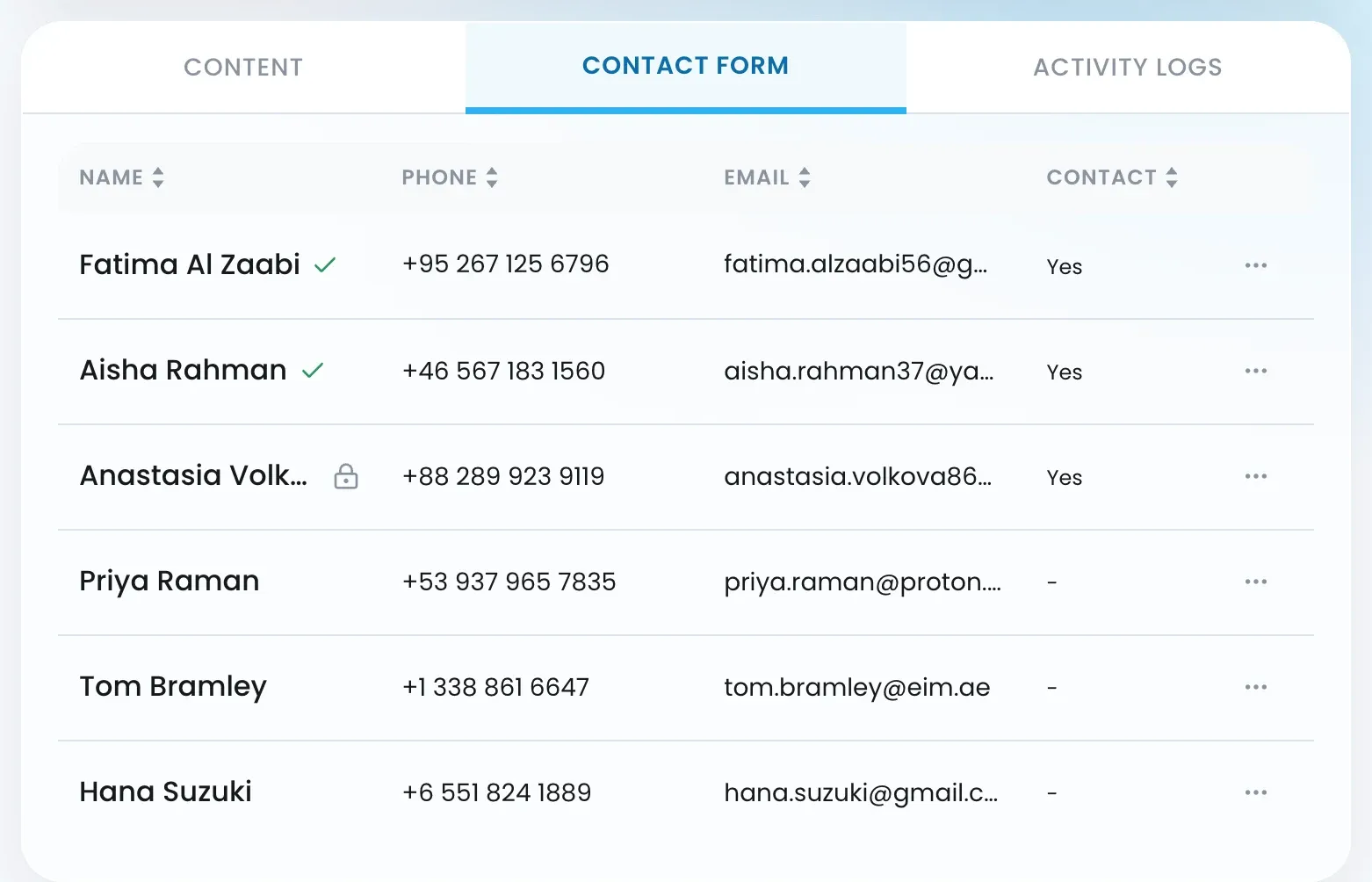
| Contact column | What it means |
|---|---|
| Yes | Matches an existing contact by email or phone. |
| – | Not a contact yet. |
Create a contact
- Click the ⋯ on the enquiry’s row.
- Click Create Contacts. A new contact is created from the name, email and phone on the enquiry.
For an enquiry that is already a contact, the menu shows View Contacts Profile instead. If the contact is locked, it shows Request Access, and you choose Viewer or Editor access, the same levels as when a contact is shared. See Data visibility and “Request access”.
Check what happened
Each submission counts as an engagement on the page.

