
Every deal moves through the same stages. The stage tells the team where a deal stands and decides which panels the deal page shows you.
The stages
Resale and New Development deals start with the same stages: New → Qualified → Viewing → Reserved → Contract → Close Won or Close Lost. The strip on the deal page is blue for Resale and green for New Development.
| Stage | What the deal page adds |
|---|---|
| New | – |
| Qualified | Prospect Match, plus Create Campaign to share a shortlist |
| Viewing | The Scheduled Viewing tab opens first |
| Reserved | The Offer panel, plus Financial Details and Others |
| Contract | – |
| Close Won / Close Lost | – |
A Super Admin, or a role with the Config permission, can reorder, hide or add stages for each pipeline under Settings → Deal Stages. See Configure deal stages.
Read the stage strip
The strip at the top of the deal shows the date the deal reached each stage, NOW on the current one and NEXT on the one after.

Move a deal forward
- Open the deal.
- Click Update Stage at the top right.
- Pick the stage. The menu lists the stages ahead of the current one, then Close Won and Close Lost.
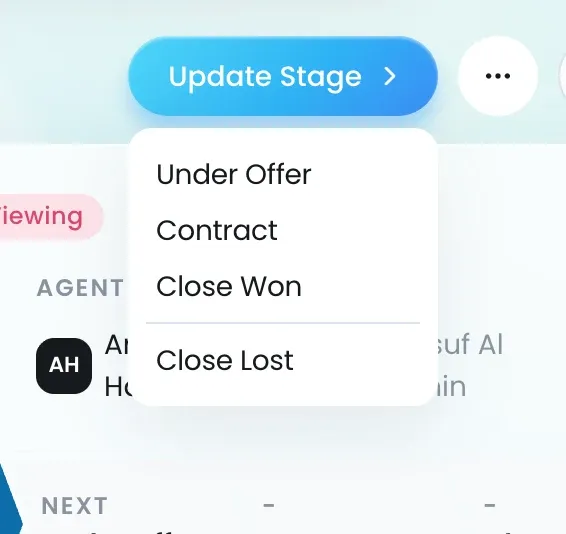
You can skip stages. Lukkio dates the strip.
Two other actions move a deal for you:
- Dragging a card on the kanban board. See Track deals in kanban, table or card view.
- Accept Offer, which moves the deal to the next stage: Contract by default, or a custom stage added after Reserved. See Create, accept or counter an offer.
Moving to Reserved
If the deal has no open offer yet, Create Offer opens straight after the move so the price is recorded. Choose I’ll add the offer later if you do not have it yet.
Closing a deal
- Close Won asks you to confirm.
- Close Lost asks who cancelled (Cancel by) and a Lost reason. The reason is required.
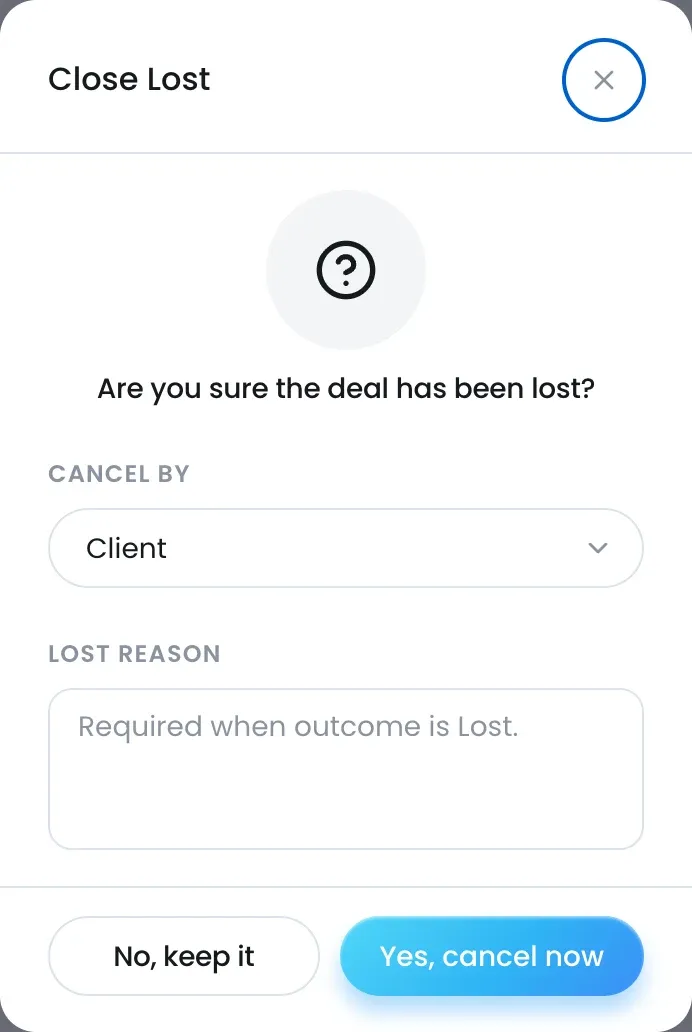
For everything else that changes, see What happens when a deal closes.
Check what happened
- The stage badge next to the deal name changes and the strip gains a date.
- Days in stage starts again from 0.
- On the kanban board the card sits in its new column.

