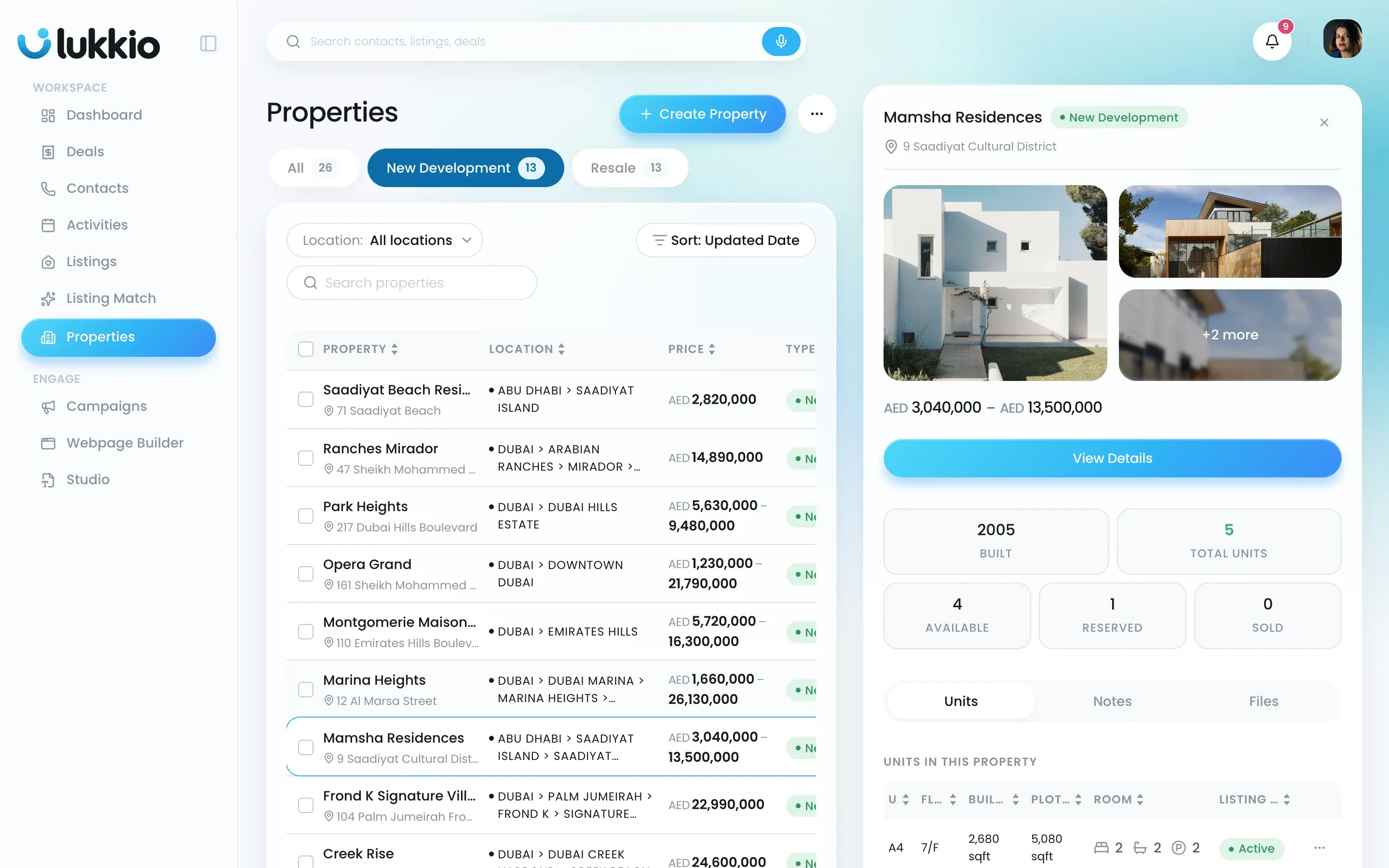
The Properties page lists every building and community your agency works with, with the unit counts on each row. The filters here are deliberately simple: type, location and a sort. Anything about individual units, such as status, floor or size, lives on the property’s own page.
Filter by type
- Open Properties.
- Click All, New Development or Resale. Each tab shows how many properties it holds.
Filter by location
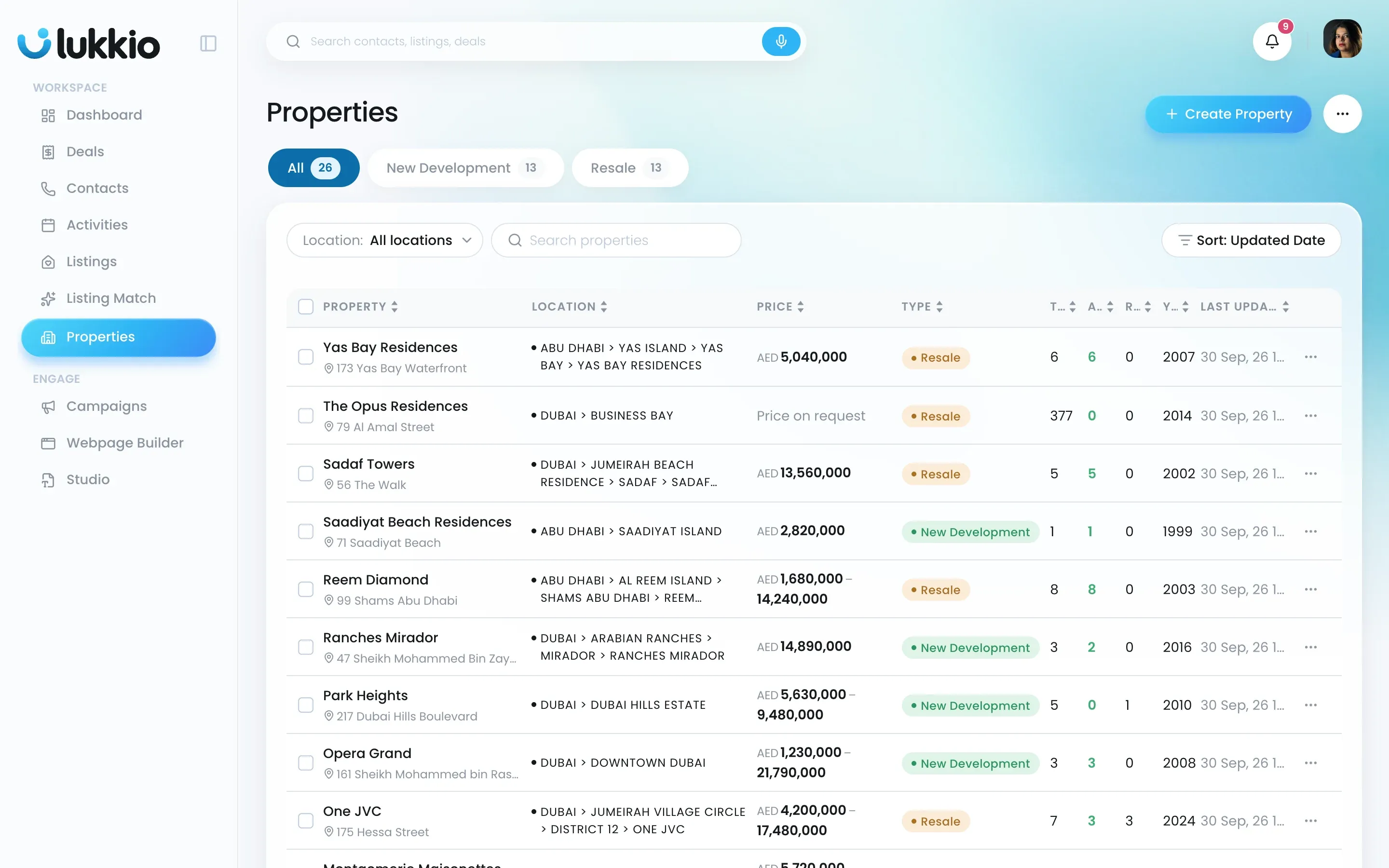
- Click Location:. The list opens at the top of your location tree, one city per row.
- Click a city to drill into its communities, and again for sub-communities. Pick the level you want; you don’t have to go all the way down.
- To clear it, open the menu again and choose All locations.
Sort
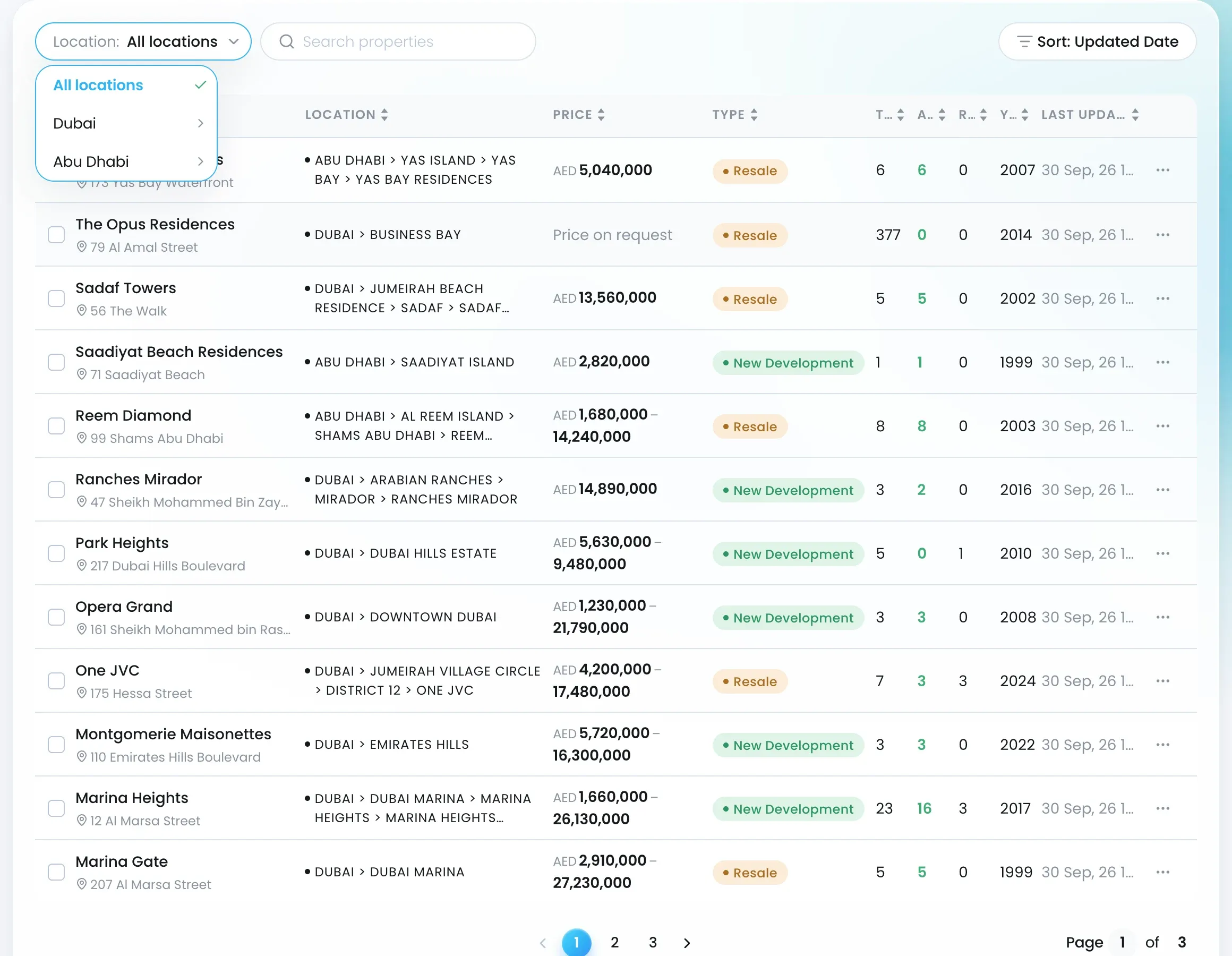
- Click Sort.
- Choose Updated Date (New to Old), Created Date (New to Old) or Created Date (Old to New). Updated Date (New to Old) is the default.
Read a row, or take a quick look
Each row shows the property name and address, its location path, the type, Total Units, Available, Reserved, Year Built and when it was last updated.
Click a row to open the side drawer beside the list, with tabs for Units, Notes and Files. Click View Details for the full property page, or the ⋯ on the row for View, Edit, Duplicate and Delete, depending on your role’s permissions.