
When you share listings with a client by link, from a campaign or straight from a contact, the client can pick the ones they want to see and tell you when they are free. That comes back to you as a viewing request. Nothing is booked until you confirm it.
What the client does
-
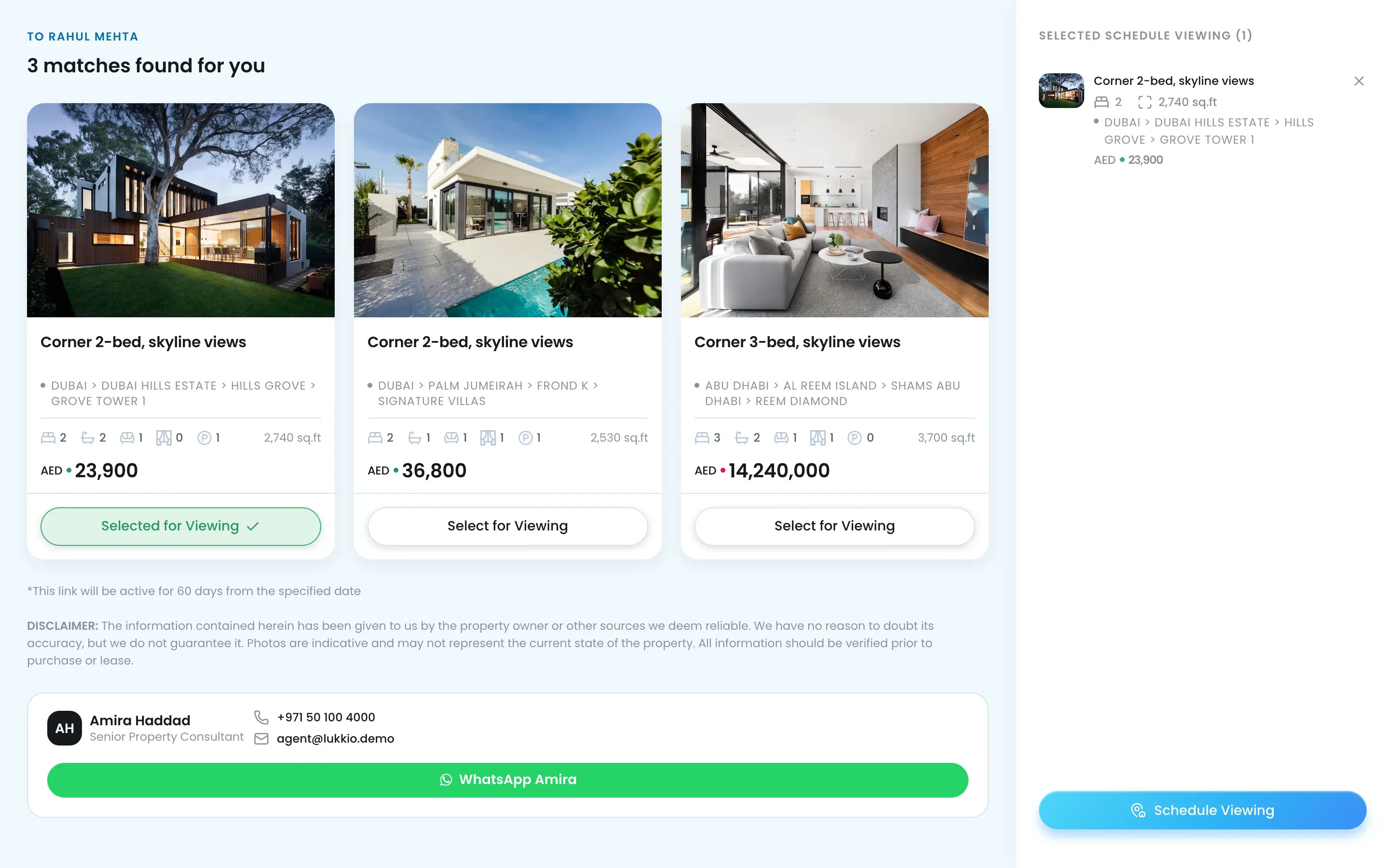
Opens the link and clicks Add to viewings on each listing they want to see.
-
Clicks Schedule Viewing.
-
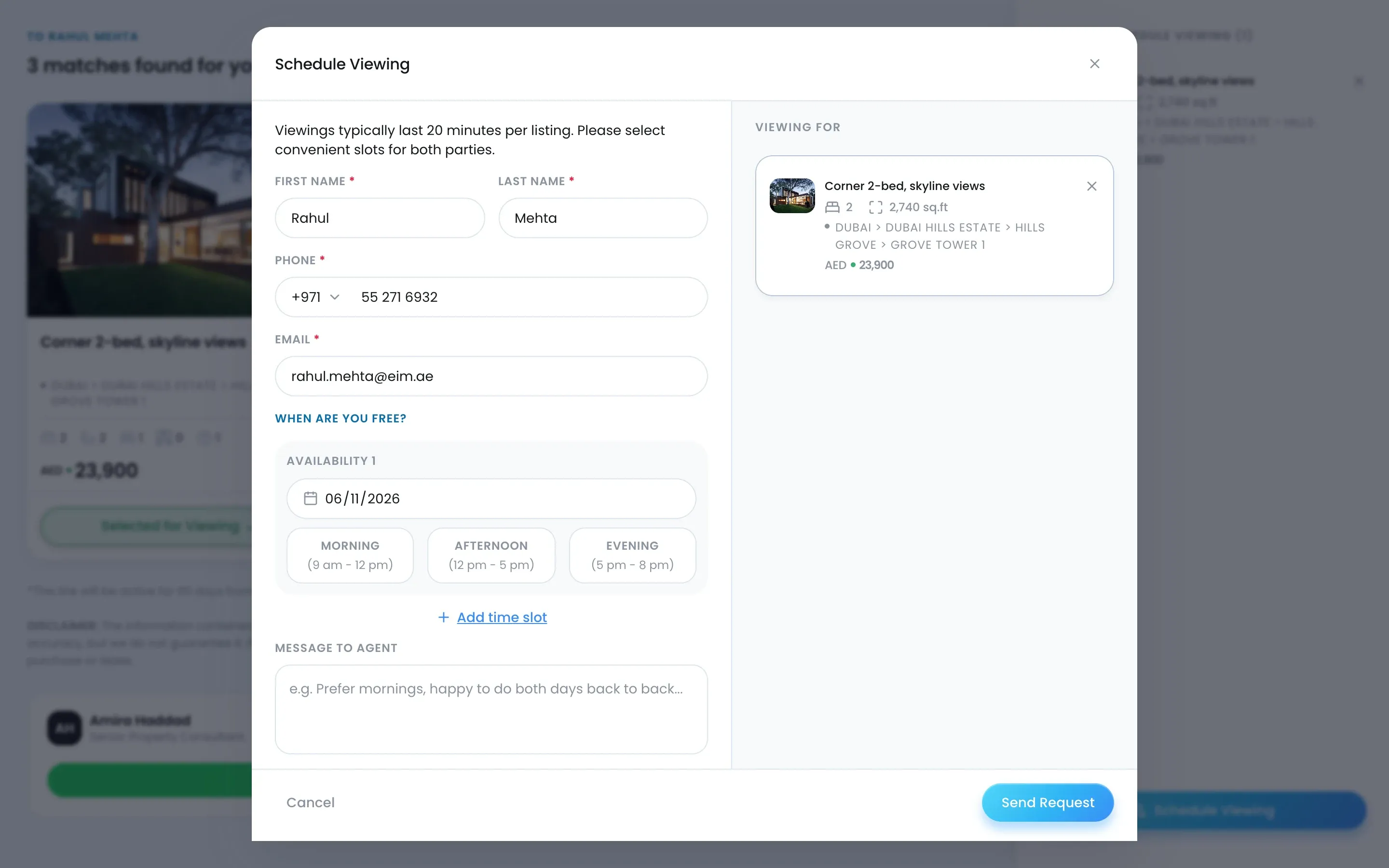
Enters their name, phone and email.
-
Under When are you free?, picks the dates and times that suit them.
-
Adds a message for you and sends the request.
Find your requests
-
Open Activities. The Request button above the list shows how many new requests are waiting.

-
Click it to open Viewing Requests.
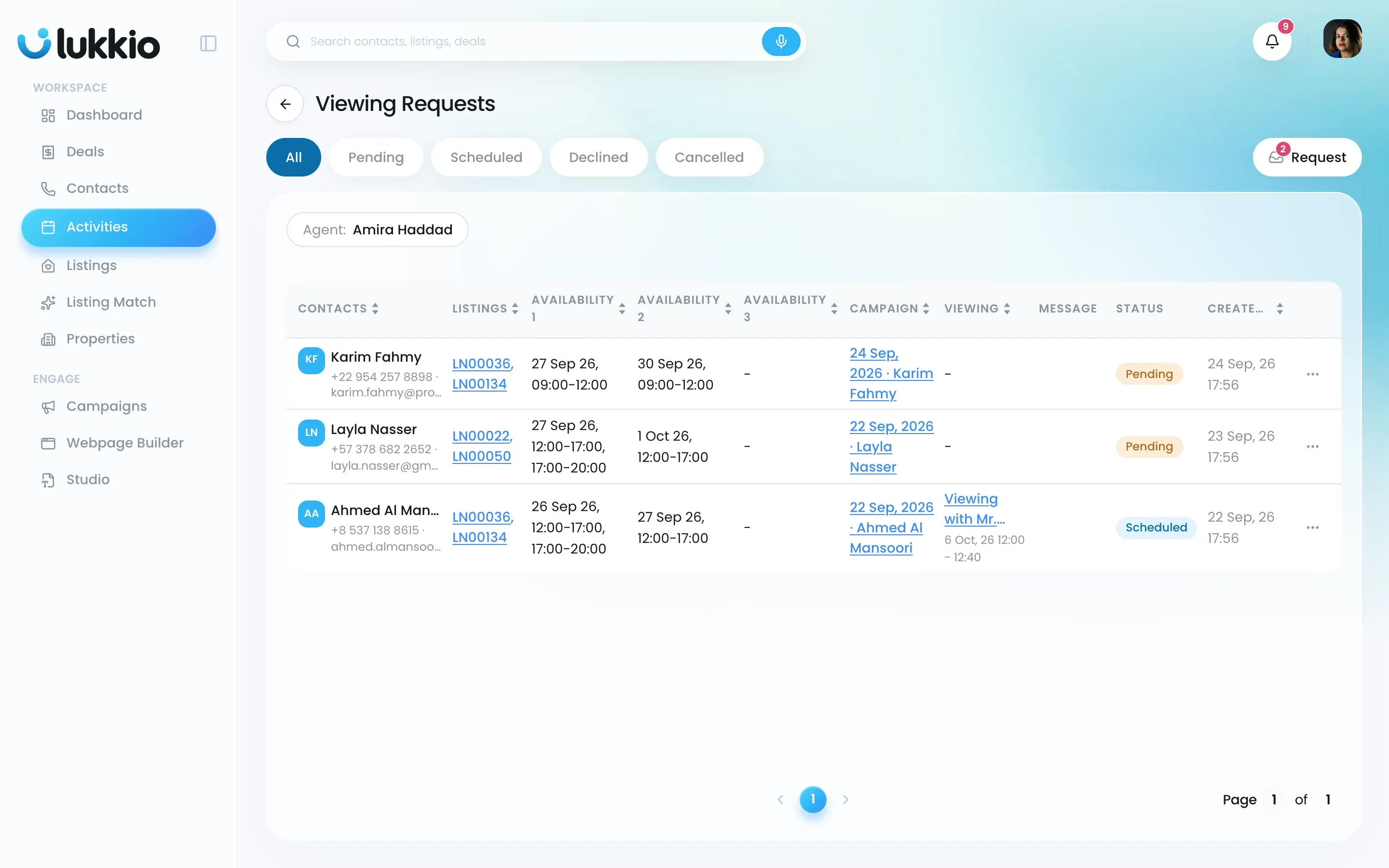
Each row shows the contact, the listings by reference, the deal if there is one, the availability windows, the message and when it arrived. The coloured bar on the left is the status: blue for new, green once scheduled, red when cancelled.
Agents see their own requests. Team leads and admins see the team’s, with an Agent filter. New requests also appear in the Viewing Requests card on your dashboard.
Confirm a viewing
-
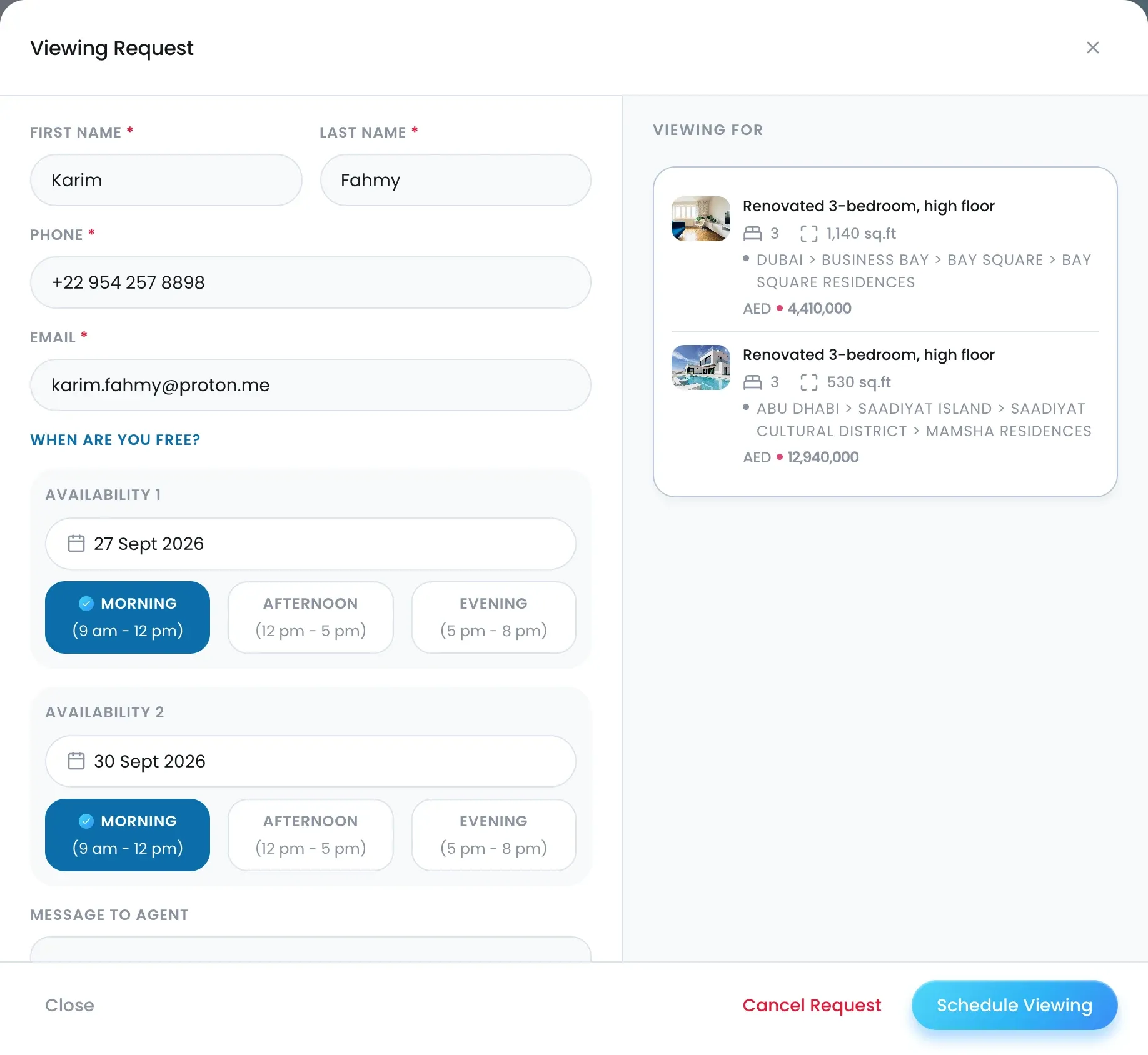
Click the request’s title in the first column to open it.
-
Check the listings under Viewing for and the client’s availability. Call or message the client if you need to settle on a time.
-
Click Schedule Viewing. A viewing opens with the contact and listings filled in; set the time and save. The client gets a confirmation email.
The row’s ⋯ menu offers the same Create Viewing action without opening the request.
Cancel a request
- Open the request and click Cancel Request, or use ⋯ → Cancel on the row.
- Add a Reason if you have one.
- Confirm with Yes, cancel.

