
The editor shows the page as visitors will see it. Click a section and its settings open on the right. Text is edited in place. Switch between desktop and mobile to check both before you publish.
Open the editor
- Open Webpage Builder.
- Click the ⋯ on the page’s row and click Edit.
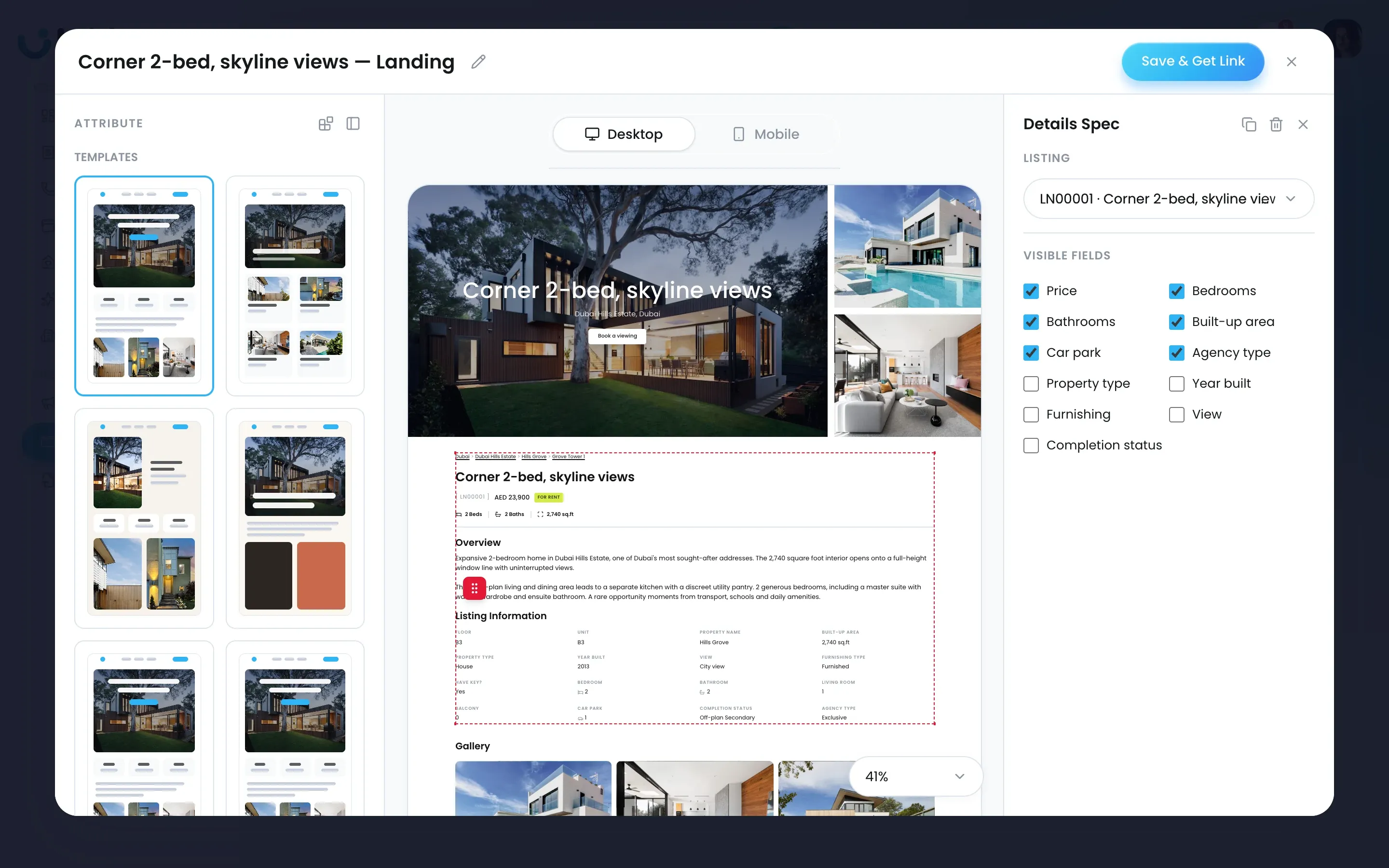
Left is TEMPLATE on a template page, or COMPONENT on a page started with Build your own. The middle is the page, with Desktop and Mobile above it and a zoom control below. Right is DATA SOURCES or Overall Setting, with the listings, the agent and the SEO settings.
Edit a section
- Click a section on the page. It gets a dashed outline and its panel opens on the right.
- Change its settings. On Details Spec, for example, pick the Listing and tick the Visible fields: price, bedrooms, bathrooms, built-up area, carpark, agency type, property type, year built, furnishing, view and completion status.
- Click a piece of text to edit it in place. Text that comes from the listing record, such as the specs and the overview, is changed on the listing, not here.
- To change an image, select its section and upload a new one: JPG or PNG, up to 2 MB (1 MB on Features).
- On a page started with Build your own, drag components into place.
Add a section
On a page started with Build your own:
- Open COMPONENT on the left.
- Pick from Element, Property Section and Agent Section.
- Drag one onto the page.
Change the look
In Overall Setting → Design, set Background, Primary Colors and Padding (Vertical). The logo goes in the Header section.
Check on mobile and save
- Click Mobile above the page.
- Scroll through and fix anything that wraps badly. Mobile is a preview only: there are no separate mobile settings, so any fix changes the desktop page too.
- Click Save. On a live page, Save keeps your changes private; click Publish & Get Link to put them live.

