
Forty contacts fit on a screen. Four hundred do not. The Contacts page gives you quick tabs for the common cuts, filters you can stack for the rest, and a quick way to add the contacts you’ve found to a campaign.
Start with the quick tabs
Open Contacts. The quick tabs cut the list by what you usually need: All, Buyer, Tenants, Landlord, New and Hot.
Stack filters
- Click Status: and tick one or more of New, Working, Qualified, Active, Unqualified and Opt-out.
- Click Role: and tick Buyer, Tenant, Landlord or Developer.
- Click Source: to narrow by where the lead came from. Your own sources sit above the line, the portals below it.
- Click Agent: and search for a colleague to see only their contacts.
- Click Sort: to order by Updated Date or Created Date. The list opens sorted by Updated date, most recently changed first.
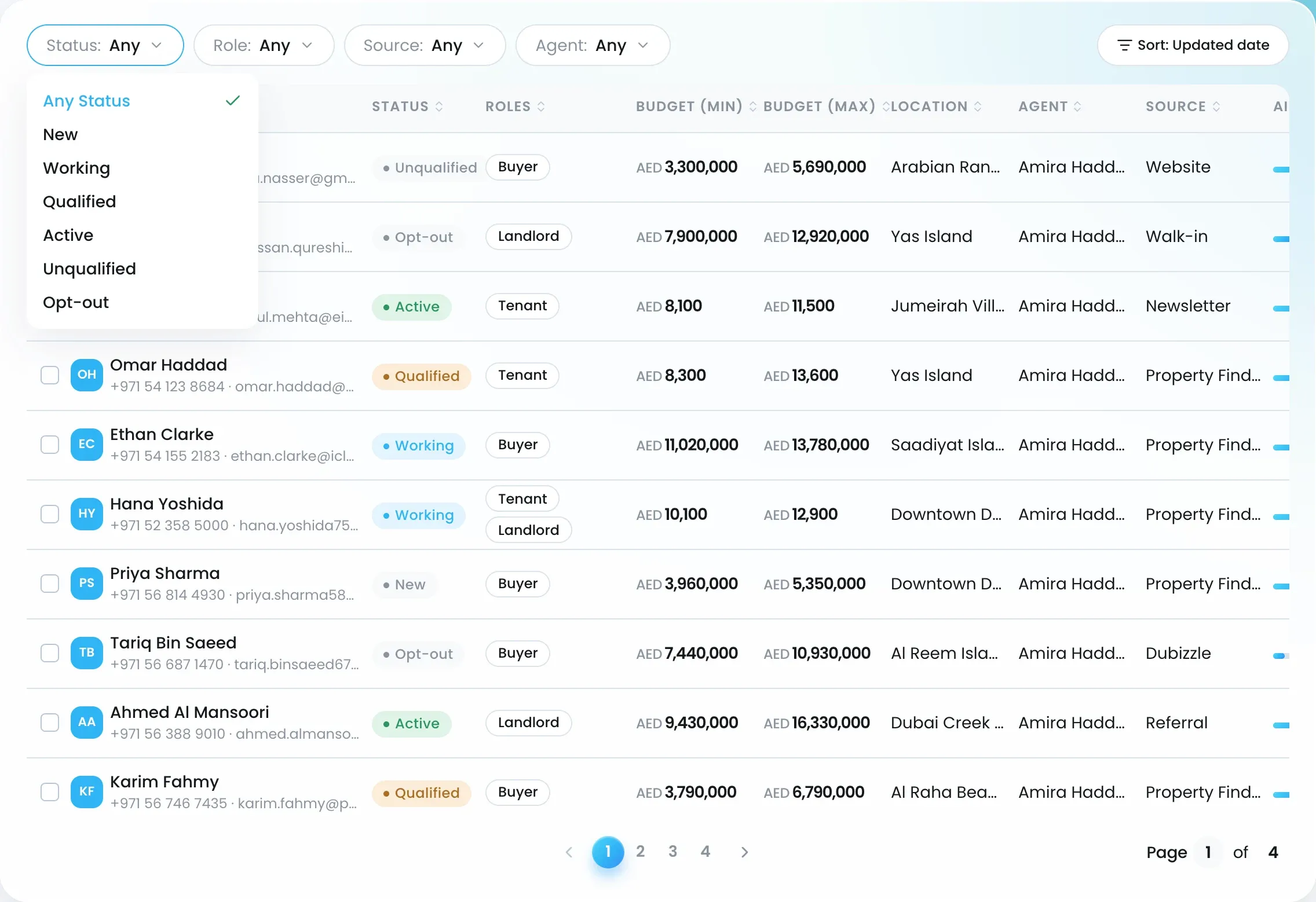
Filters add up. Buyers, from Property Finder, handled by one agent, sorted by newest is four clicks. Each filter button shows what it holds, and picking Any clears it.
Change the view
The three icons next to New Contact switch between Table, Card and Kanban. Kanban puts one column per status, so you can drag a card from New to Working as you qualify it. Unqualified and Opt-out stay folded away.
Add contacts to a campaign
Tick the contacts in the list and add them to a campaign in one action.

