
Lukkio is priced per seat, and a seat is the licence one active user needs. You choose your billing cycle and the number of seats when you sign up, and you can add or remove seats later. Prices are on the pricing page.
Before you start
- You are a Super Admin, or your role has the Billing permission. Only they can open Plans & Billing or change seats.
- Count the people who need to sign in. Inactive users do not use a seat.
Choose your plan and seats at sign-up
You pick both on the Choose your plan screen when you sign up: the Yearly Plan or the Monthly Plan, and the number under How many seats do you need? You need at least one seat. See Sign up and start your 14-day trial for every step.
Nothing is charged at sign-up. The first charge is the day after your 14-day trial ends, for the seats you have then.
Yearly or monthly
| Yearly Plan | Monthly Plan | |
|---|---|---|
| Charged | In advance, for a 365-day term | In advance, for a 30-day term |
| Price per seat | Lower | Higher |
| Best for | A stable team | A team that changes size often |
All seats share one cycle and one renewal date. To switch the whole plan between yearly and monthly, see Cancel or change your plan; the change takes effect at your next renewal.
Add seats
- Open Settings → Plans & Billing.
- On the Overview tab, click Add seat. You can also open the ⋯ menu on the status card and choose Manage Seats.
- Set the new number of seats. The summary shows the prorated amount as of today, what is Paid today and the billing period.
- Click Confirm Changes.
- Click Pay Now to pay the prorated amount.
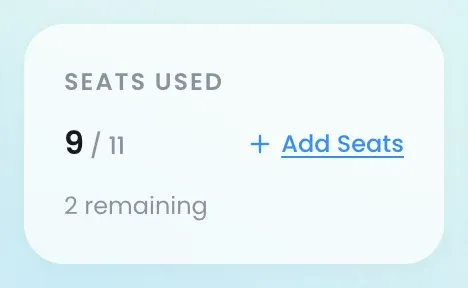
A seat added mid-term is charged today, for the days left in the current term, and renews with the plan at full price. The new seat is available as soon as the payment goes through. During the trial there is no proration: added seats join the first charge at full price. Seats cannot be changed while a payment has failed or a cancellation is pending.
Remove seats
- Open Settings → Plans & Billing.
- Open the ⋯ menu on the status card and choose Manage Seats.
- Lower the number of seats. It can’t go below the number of seats assigned to people.
- Check the summary. Paid today is US$0.00, and it shows the date the change applies.
- Click Confirm Changes.
The change shows as a Seats Changes Request under the status card and takes effect at your next renewal. Nothing is refunded for the rest of the current term. Cancel Request withdraws it. During the trial, removed seats come off the first charge straight away.
To remove a seat that someone is using, deactivate that user first. You always keep at least one seat; to stop paying altogether, cancel the subscription instead.
Assign seats to people
A seat is simply the licence an active user needs. When you add a user and a seat is available, they take it; nothing extra is charged. If every seat is taken, Lukkio shows No Seats Available with an Add Seats button — add a seat first, or deactivate a user to free theirs.
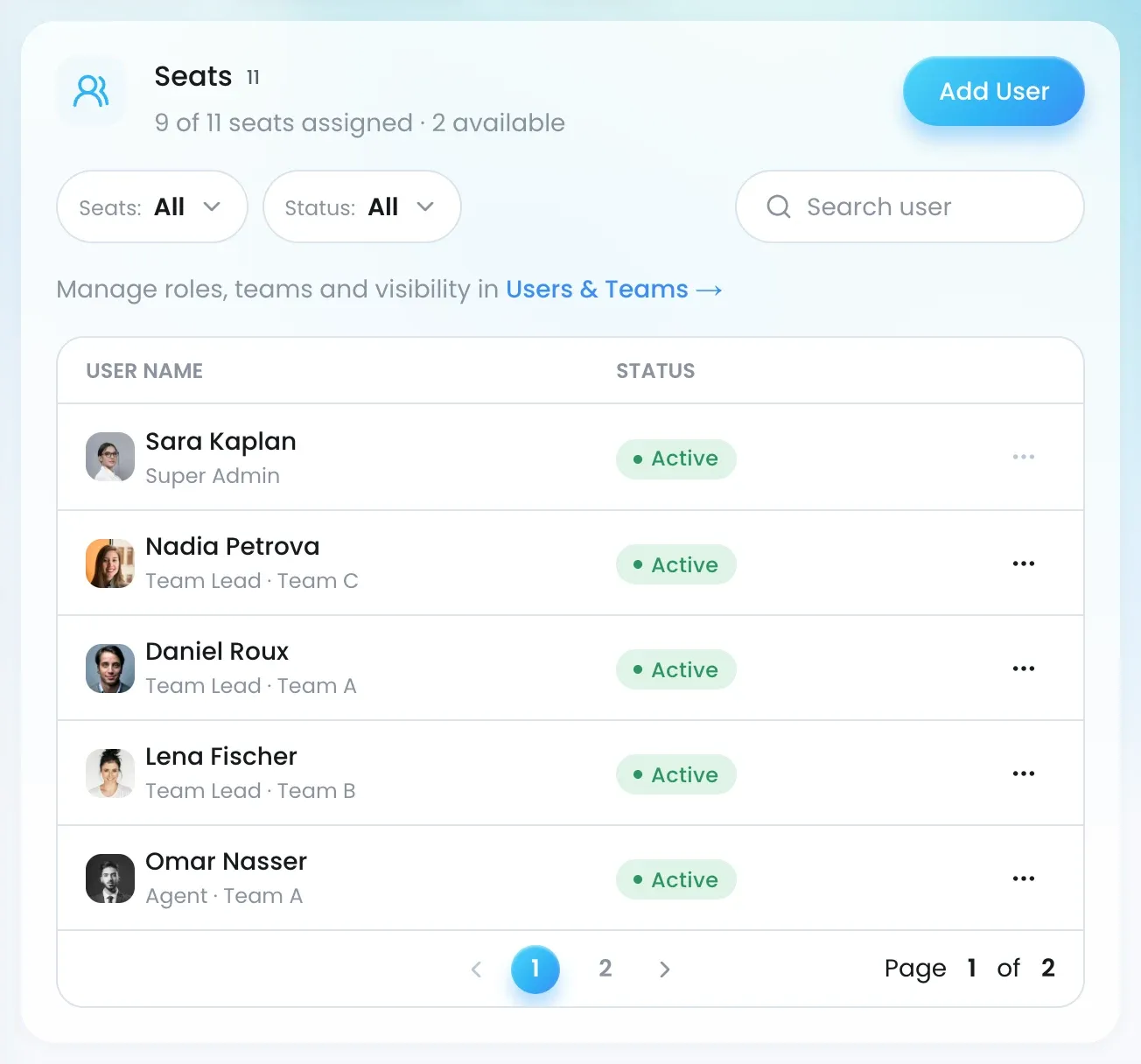
The Seats & Add-on tab lists every user with their status, and the count of seats assigned and available. Deactivated users do not use a seat and keep all their records.
Check what happened
- Plans & Billing shows the plan, the seat count and the next billing date.
- The Seats & Add-on tab shows the seats assigned and available.
- A seat purchase gets its own invoice on the Invoices tab. See Payment methods and invoices.
- A reduction shows as a Seats Changes Request under the status card until your renewal date.

