
Moving from another CRM or a spreadsheet means hundreds of contacts. Import Data takes a CSV, matches its columns to Lukkio fields, tests every row against the same rules as the contact form, and only then imports. Rows that match an existing contact update it (empty cells don’t clear data); other rows become new contacts owned by you.
Before you start
- Save your file as CSV (UTF-8). The first row must be the column headers. Up to 10,000 rows per file.
- Every row needs First Name, Last Name, Role, and a Phone Number or an Email. One of the two is enough. An email must be a valid address when present.
- Role is Buyer, Tenant, Landlord or Developer. Status is New, Working, Qualified, Active, Unqualified or Opt-out; blank means New. Source must match a name in Settings → Contact Sources. See Set up your agency’s lists and AI writing style.
- Users with the Add permission on Contacts can import; updating existing contacts also needs Edit. New contacts are owned by whoever imports them.
Upload the file
- Open Contacts.
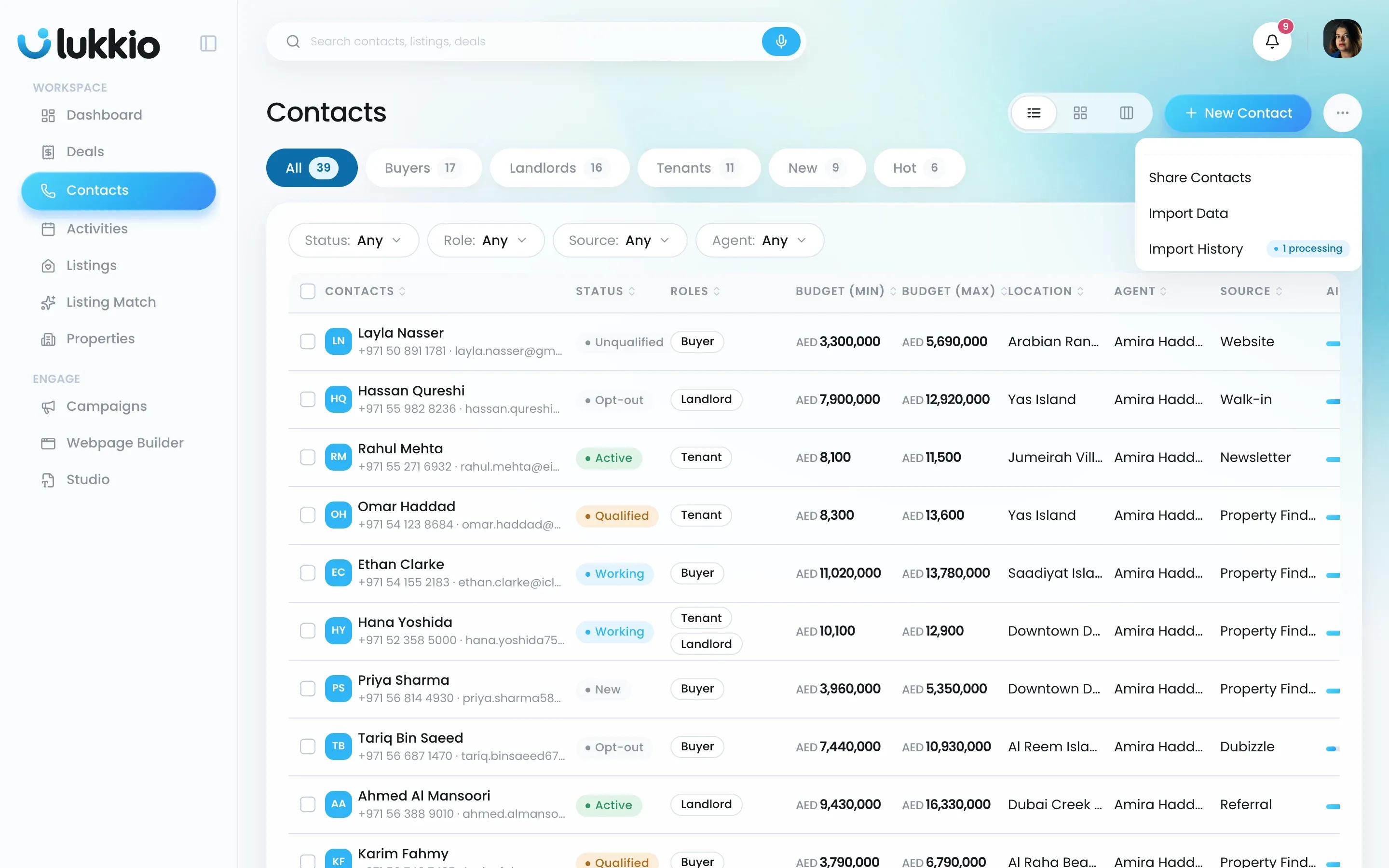
- Click the ⋯ button in the top right and choose Import Data.
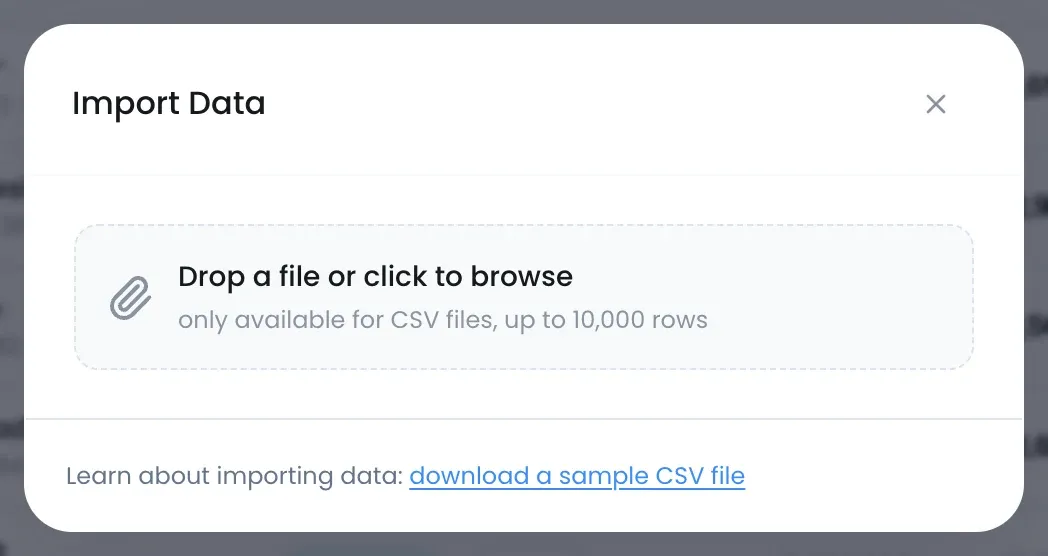
- Drop your CSV on the window, or click to browse.
Match the columns
The next screen lists every column in your file under Columns in your file, with a Label in Lukkio dropdown beside each.
- Check the columns Lukkio matched on its own. Common headers such as Surname, E-mail or Mobile are recognised and show a green tick.
- For any column showing Select (no match), pick the Lukkio field from the dropdown, or fix the values it lists.
- Click the bin icon on any column you do not want to import.
- Click Test Data.
The fields you can match are the sample file’s 50 columns: basic info, buyer profile, tenant profile and landlord preference.
Test, then import
Test Data checks every row without saving anything. If it passes, a message says how many rows are ready. If it fails, the columns with problems turn red and list the row numbers to fix. Fix the file and upload it again, change the match, or drop the column. Change anything and you test again.
- Click Import to Lukkio. It is available once every column is matched and passes the check.
- The import runs in the background and you get an email with the counts when it’s done.
How duplicates are handled
A row that matches a contact already in Lukkio updates that contact, and empty cells in the file don’t clear what’s there. Every other row becomes a new contact owned by you. See Avoid duplicate contacts for the check that runs when a contact is added by hand.
Formats that pass
| Field | Format |
|---|---|
| Preferred Area, Group Tags | Several values separated with a semicolon: Dubai Marina; Downtown |
| Minimum Budget, Maximum Budget | Digits only, no currency symbol or unit |
| Area Code | 1 to 4 digits, with or without +: +971 |
| Phone | 6 to 14 digits, without the area code: 501234567 |
| Role, Status | The names above, in any case: Buyer or BUYER |
Listings and properties
Listings and properties have their own Import Data entry in the ⋯ menu of their list pages.
- Upload a CSV of up to 10,000 rows. The import creates new listings and properties and updates existing ones.
- You get an email when the import has finished.
- You need the Add and Edit permissions on Properties, Listings or both.
Locations import the same way, by CSV, from Settings → Configurations → Locations → Import Data. You need to be a Super Admin or have a role with the Config permission. A file can hold up to 4 levels, and the import adds new locations only.

