
Two records for one person means two agents calling, two half-histories and two shortlists. Lukkio catches an exact match when you save, and a quick check before every add catches the rest.
What happens if you save a duplicate
If the first and last name plus the phone or email match an existing contact, Lukkio stops you with an error and doesn’t create a second record.
A different spelling of the name isn’t a match, so the same person can still slip in twice. That’s why it pays to check first.
Check before you add
- Look for the person’s phone number or email address in Contacts.
- Open the contact that comes up.
- If it belongs to a colleague and you cannot open it, click Request Access on the page Lukkio shows you.
- Add what is new, a second role, a note, an updated budget, to the existing record instead of creating another.
If a second record has slipped through
Keep the older record, copy anything new across, a note, a role, the budget, and delete the newer one. The contact’s Owner, their Team Lead or a Super Admin can delete it, and a contact that’s linked to other records, such as deals or campaigns, can’t be deleted. To delete, open the contact, clicks the ⋯ button next to Log Activity and clicks Delete.
Imports
A spreadsheet import has its own way of handling rows that match an existing contact.
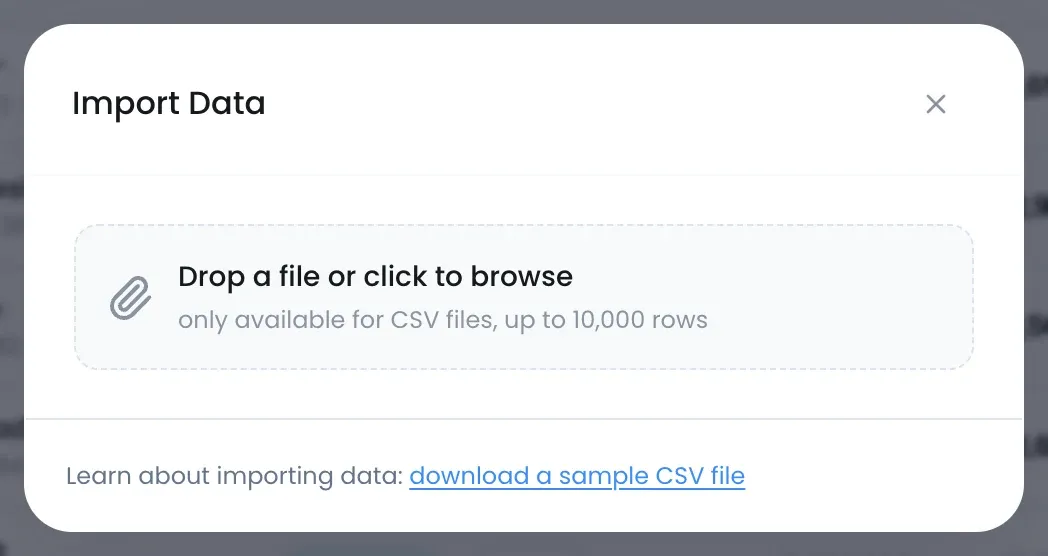
See Import contacts and listings from a spreadsheet for how it works.
Keep the book clean
- Always store the phone number with its country code. The dial code field does this for you.
- One email per person. A shared family address is how two people end up on one record.
- Correct a wrong number on the existing contact rather than creating a new one.

