
AI Match reads every contact’s profile, compares it with every listing you can see, and gives each pair a percentage. You spend your time on the calls, not on the search.
In the app the module is called Listing Match in the sidebar. It opens on AI Match, with Manual Match beside it for shortlists you build by hand. This section of the help centre is named AI Match after the part that does the scoring.
What goes into a score
Three things:
- The contact’s profile. Budget range, size range, preferred location, preferred property type, bedrooms and the other spaces, features and amenities, and the move-in date. This is the hard information from the buyer or tenant profile.
- The ten preference weightings. Price, Location, Floor plan/layout, Features & amenities, Building age, Pet friendly, Floor level, Viewport, Built-up area and Transportation. Each starts at 5, the highest. Turn one down and it counts for less. See Tell AI Match what matters to a client.
- The listing. Its price, size, location, type, rooms and features, taken from the listing record.
How to read the score
Every matched listing carries a % fit pill. The higher the number, the closer the listing is to what the client asked for. A fresh list comes sorted by fit, best first.
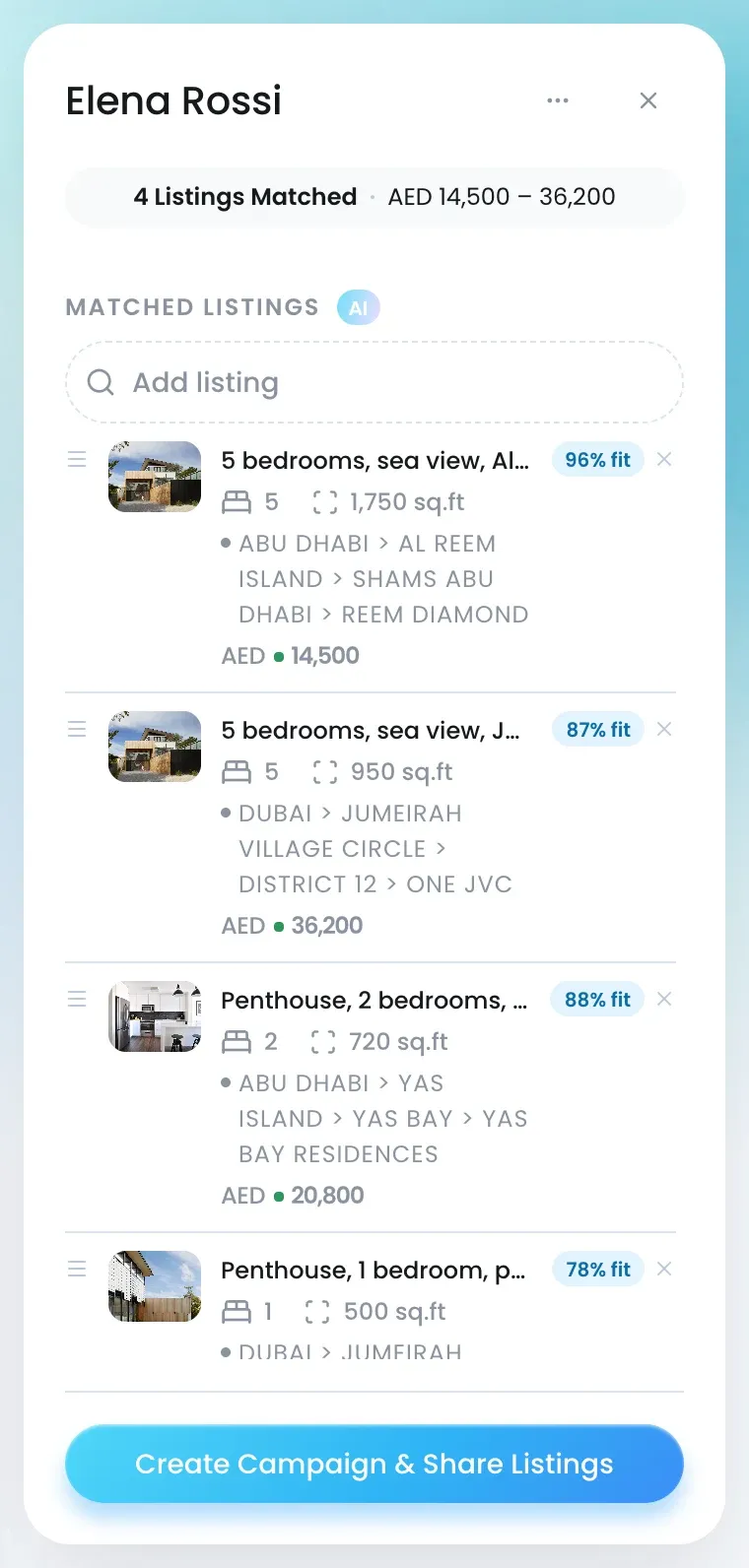
The score is not a pass-or-fail filter. A listing does not have to tick every box to appear. One slightly over budget can still show if it is in the right area with the right layout, and the % tells you how far off it is. On a contact’s page, each Prospect Match tile also says in words why it is there.
Where you see it
- Listing Match → AI Match shows one card per contact under By Contacts, with the matched listings, their price range and location. Switch to By Listings for one card per listing with the matched contacts.
- A contact’s page shows the same matches in its Prospect Match section.
Keep scores fresh
A score is only as good as the profile behind it. When a client’s budget or weightings change, the AI Match % recalculates on its own.
Under By Listings, a list can include contacts you do not have access to. They show as No-access with no phone or email. Request access before you try to add them to a campaign.

