
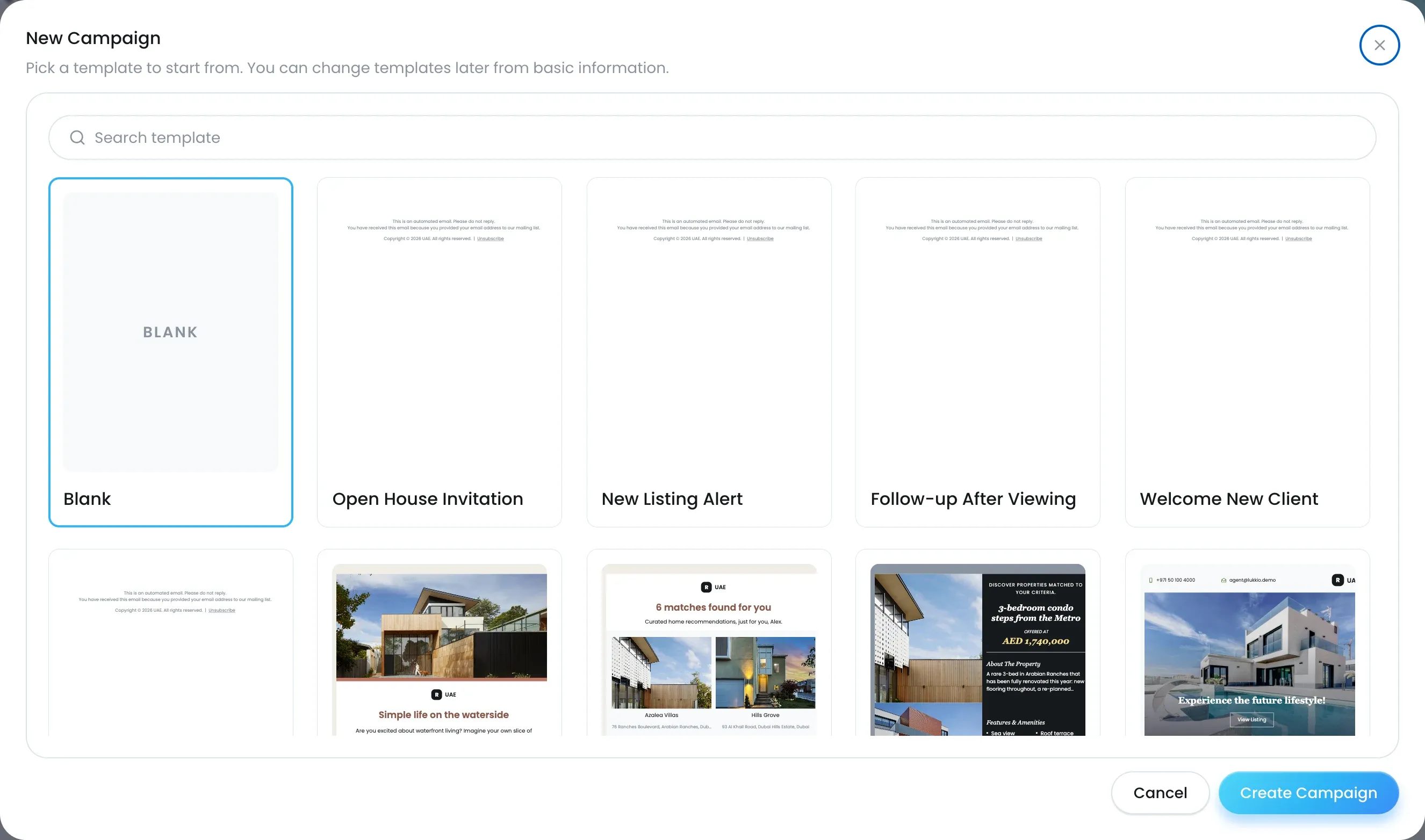
Every campaign starts with Build your own or with a ready-made template. Build your own has two tabs: Plain Text for an email you write yourself, and Component for an email you build by dragging components into place. The ready-made templates carry photo, listing and agent blocks, so a listing email looks finished without any layout work.
Pick a template for a new campaign
-
Open Campaigns.
-
Click Add Campaign.
-
Choose Build your own, or click a ready-made template to select it.
-
Click Create Campaign.
The campaign opens in the editor as a Draft.
Which template to use
| Template | Use it for |
|---|---|
| Build your own, Plain Text tab | A plain email you write or generate yourself. |
| Build your own, Component tab | Your own design, built from drag-and-drop components. |
| Ready-made templates | A finished design. They include Multiple Listings and Multiple Listings 2 for a shortlist, Open House – 1 listing for one listing, and Holiday announcement for a message without listings. |
Fill the listing slots
Listing templates have empty slots until you choose the listings.
- In the editor, open the Template panel on the right. Its heading names the template.
- Under Select listing(s), click Search listing in a slot and pick a listing. Add Listing adds another slot.
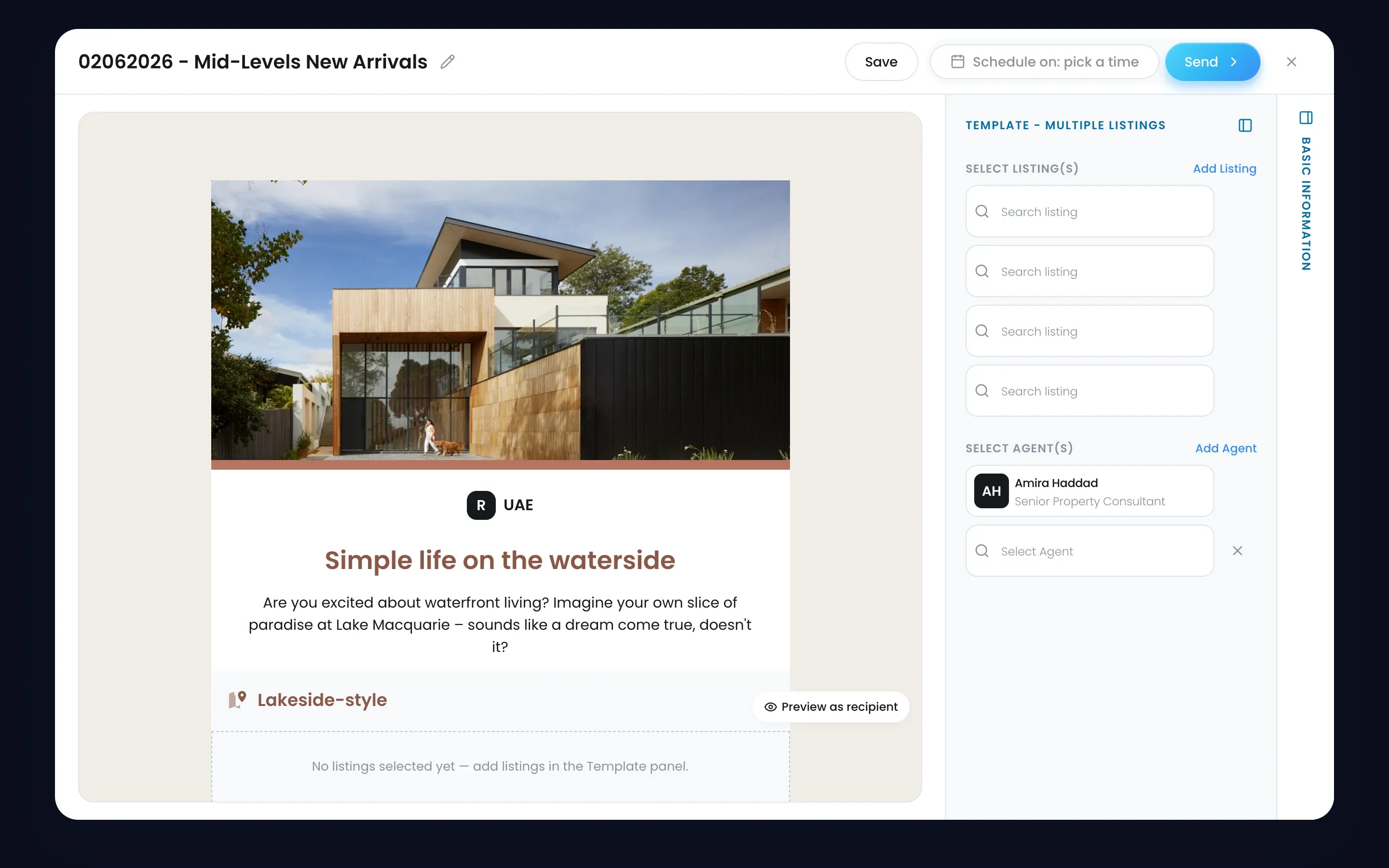
- Under Select agent(s), check the agent shown. Add Agent adds a second.
Each listing block fills with the listing’s photo, price, size and address from the listing record.

