
Every unit in a property carries its own status, size and price, and the property page adds them up. That’s how you answer “how many are left in Tower 1?” without a spreadsheet.
Read the numbers on the property
- Open Properties and open the property.
- The tiles at the top show Year Built, Total Units, Available, Reserved and Price Range.
A unit’s availability is simply the status of its listing:
| Unit status | Counted as |
|---|---|
| Active or Pending | Available |
| Under Offer | Reserved |
| Sold or Leased | Sold |
| Draft | Not counted |
Find a unit
- Scroll to Unit & Listings. It opens in Card view.
- Switch to Table view with the icon at the top right.
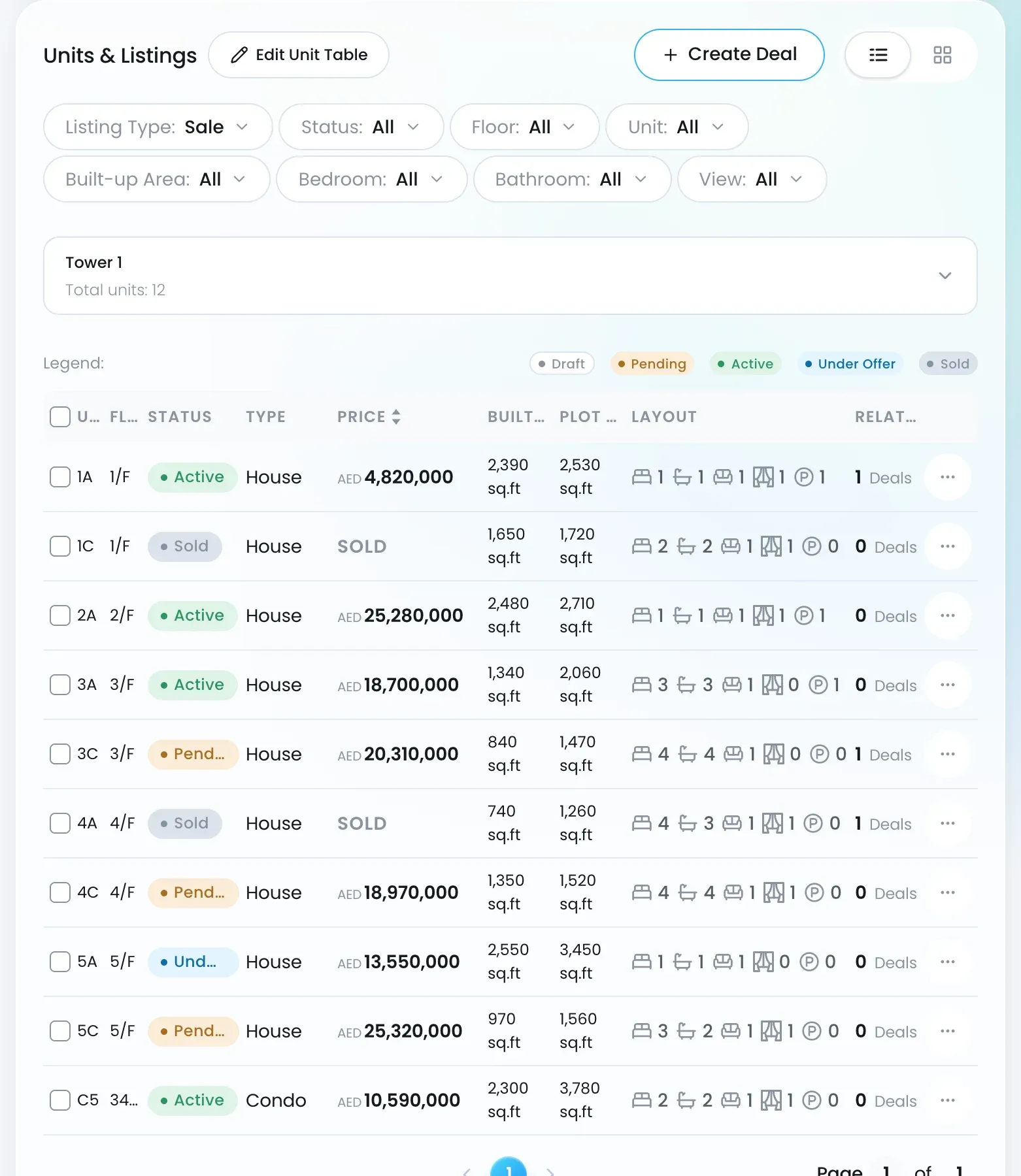
To open a deal on units, select them and click Create Deal.
Change status, size or price
For one unit:
- Use Edit Unit Table, or open the unit’s listing and choose Edit.
- Change Listing Status, Price, Built-up Area or Plot Size and save.
For many units at once:
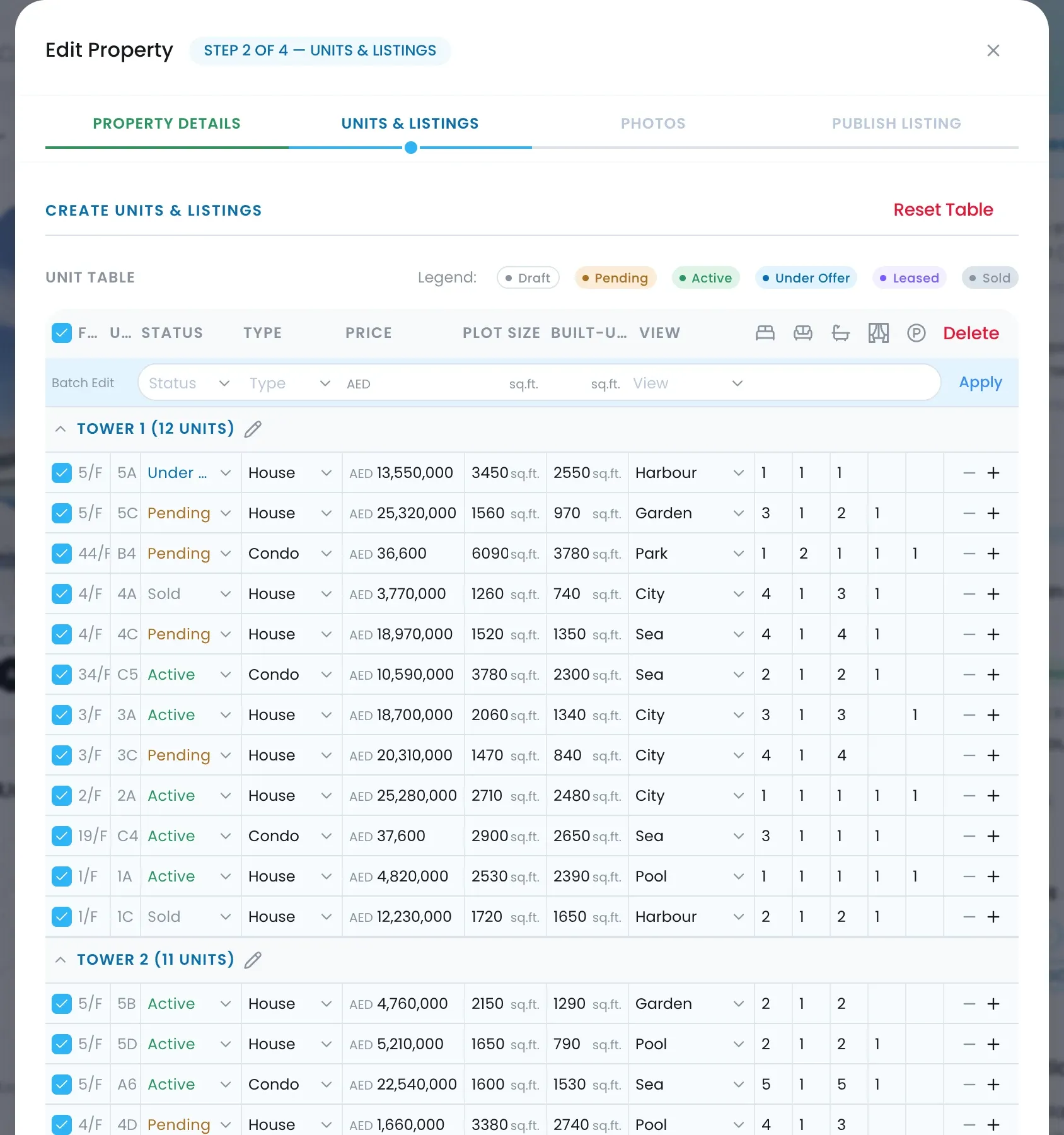
- Click Edit Unit Table at the top of Unit & Listings. Edit Property opens on the Units & Listings step.
- Tick the rows to change; the Batch Edit bar appears above them.
- Set the shared value, such as Status or Price, and click Apply.
- Adjust single rows directly in the table, then click Save & Next to save the step.
When a deal progresses
A deal’s stage does not change the listing’s status. When a deal on a unit moves on, update the listing’s Listing Status yourself, for example to Under Offer or Sold. The listing’s primary agent, their Team Lead or a Super Admin can change it.
The property’s Available, Reserved and Sold counts follow the listing, so they move as soon as you save. Under Offer counts as Reserved. See What happens when a deal closes.

