
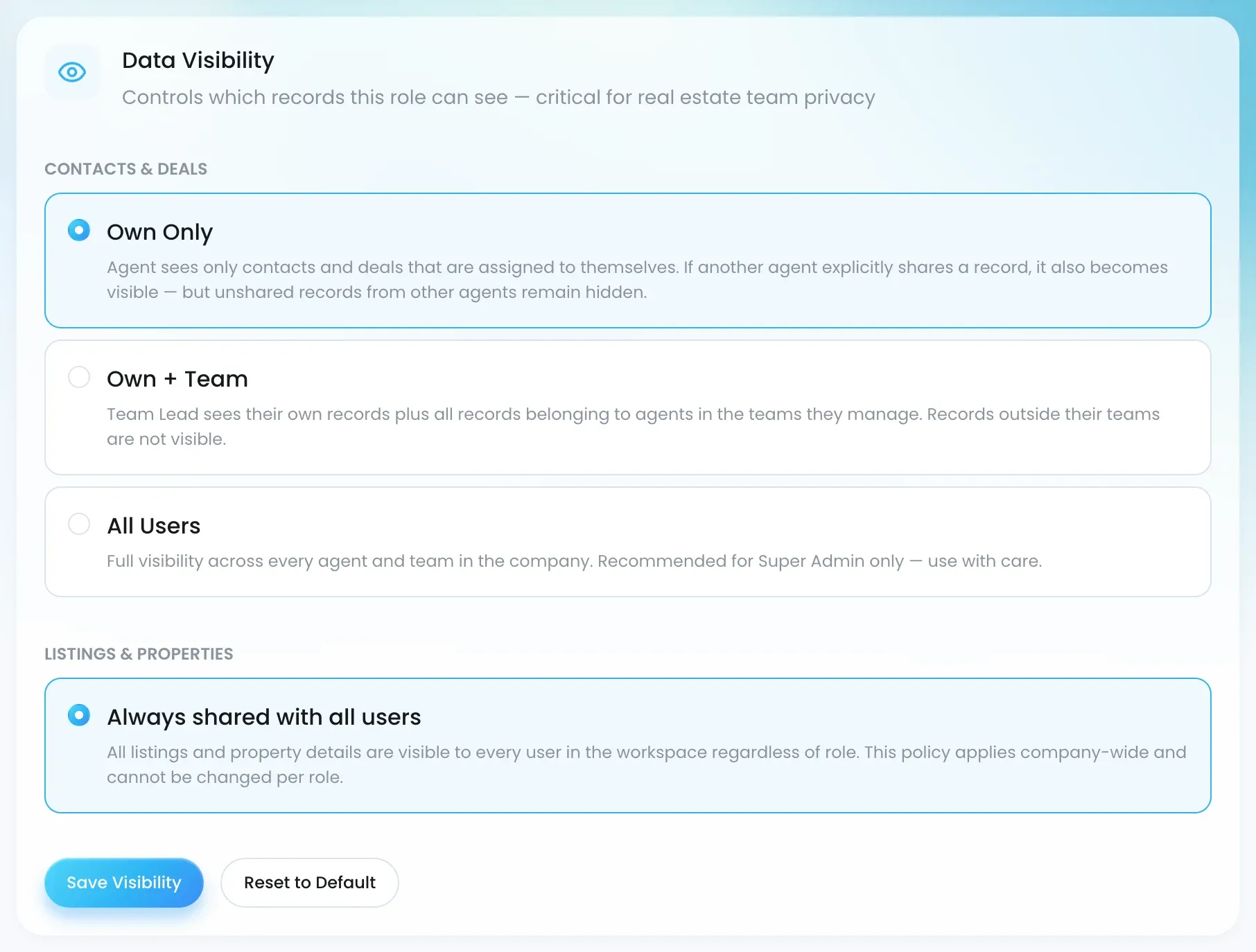
An agent’s contacts are their book of business. By default Lukkio keeps them private: an Agent sees only the contacts and deals assigned to them, a Team Lead sees their team’s, and a Super Admin sees everything. Listings and properties are the exception. They belong to the agency, so everyone sees them.
This article explains what each setting means, what a colleague sees when they reach a record they cannot open, and how access is granted.
The three visibility settings
Visibility is set per role under Settings → Roles → Data Visibility. It applies to contacts, deals, activities, campaigns, Webpage Builder pages and Studio sheets.
| Setting | Default for | Sees |
|---|---|---|
| Own Only | Agent | Records assigned to them, plus records explicitly shared with them |
| Own + Team | Team Lead | Their own records plus everything owned by agents in the teams they lead |
| All Users | Super Admin | Every record in the workspace |
Listings and properties
Listings and properties do not follow the visibility setting. Every agent can view every listing and property. Editing and landlord details are narrower:
| What | Who |
|---|---|
| Edit a listing | The listing’s primary agent, their Team Lead or a Super Admin |
| See landlord details | The listing’s primary agent, its co-agents, the primary agent’s Team Lead and Super Admins |
What “no access” looks like
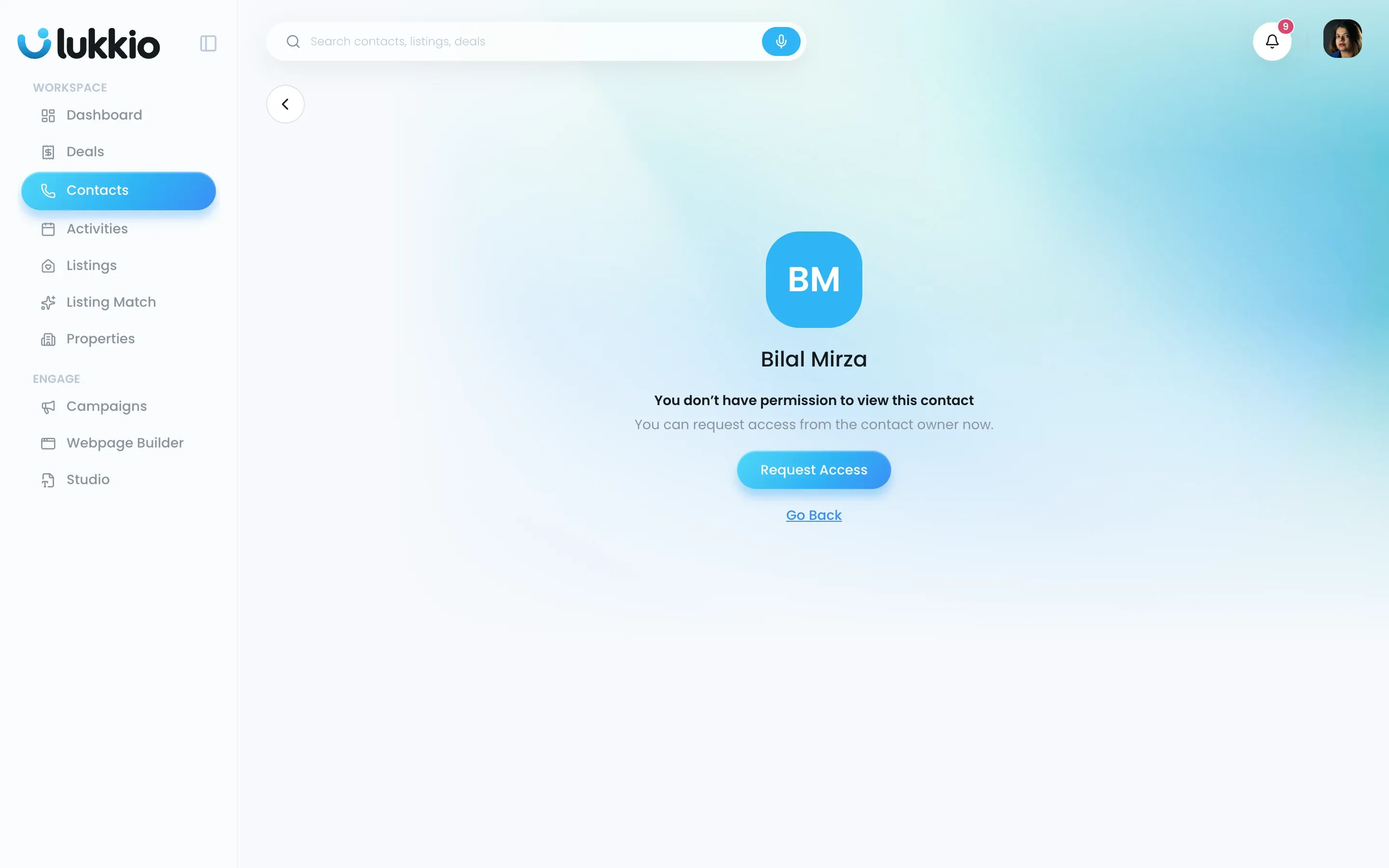
When an agent reaches a contact they do not have access to, through search or from a listing’s landlord section, Lukkio shows a no-permission page with an option to request access.
Share a contact
The owner of a contact, or someone who already has editor access, can share it.
- Open Contacts and tick the contacts to share.
- Open the ⋯ menu and choose Share Contacts.
- Pick the colleague, then choose a level for each: Owner, Editor or Viewer.
- Confirm the share.
A Viewer can read the contact but cannot add notes, activities, deals or campaigns, upload files or send email. An Editor can do all of that. Assigning Owner hands the contact over, because each contact has exactly one owner. Only the owner, their Team Lead or a Super Admin can delete a contact. For the full flow see Share a contact: owner, editor or view-only.
Handle access requests
- Open Contacts and click Request at the end of the tab row. A badge shows how many requests are waiting.
- The Contact Requests page lists each request with the contact, who asked and the current owner.
- On a pending row, open the ⋯ menu and choose Share to grant access, or Cancel to decline.
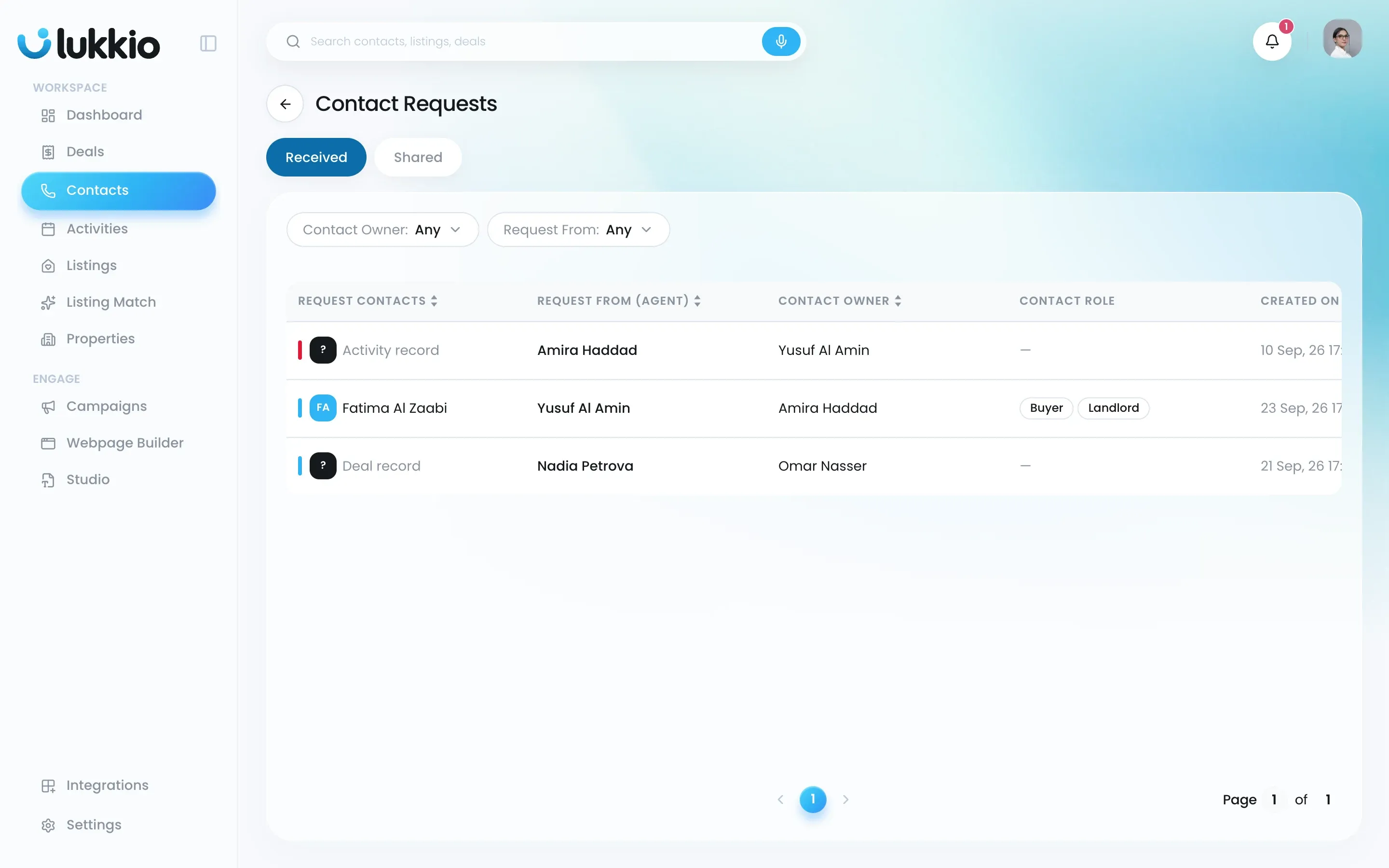
The owner is notified when a request comes in, and the requester when access is granted or declined.

