
An agent sees their own contacts. A team lead sees the team’s, and a Super Admin sees everything. When a colleague outside that circle needs to work one of your contacts, share it with them and choose how much they can do.
The three levels
| Level | Can | Cannot |
|---|---|---|
| Viewer | Open the contact and read the profile, notes, files and history | Edit, or add notes, files, activities, deals, campaigns or emails |
| Editor | Everything a Viewer can, plus edit the contact and add notes, files, activities, deals, campaigns and emails | Delete the contact |
| Owner | Everything, including deleting the contact |
Every contact has exactly one Owner. Only the Owner, their Team Lead or a Super Admin can delete a contact.
Share from the contact page
- Open the contact.
- Click the ⋯ button next to Log Activity.
- Click Share.
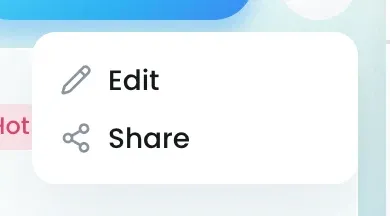
- In Share Contacts, type your colleague’s name under Add users and pick them from the list.
- Choose their level: Viewer, Editor or Owner.
- Add anyone else who needs access.
- Click Share Contact.
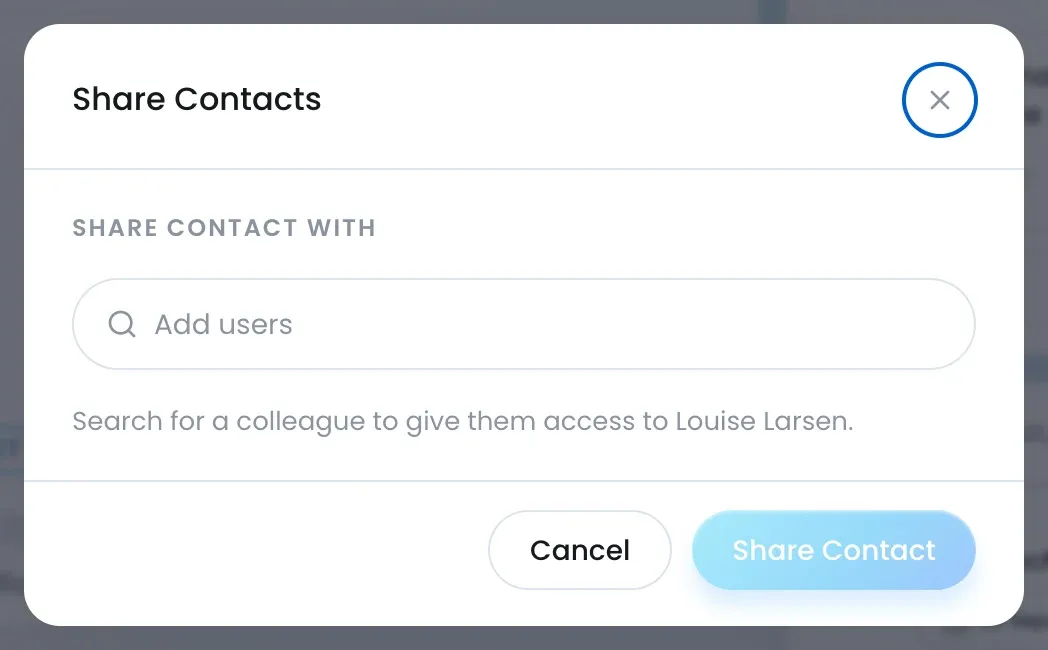
Your colleague gets an email, and the contact opens for them straight away.
Share several contacts at once
- Open Contacts and tick each contact you want to share.
- Click the ⋯ button at the top right of the page.
- Click Share Contacts.
- Add people and levels as above, then click Share Contact.
When you cannot open a contact
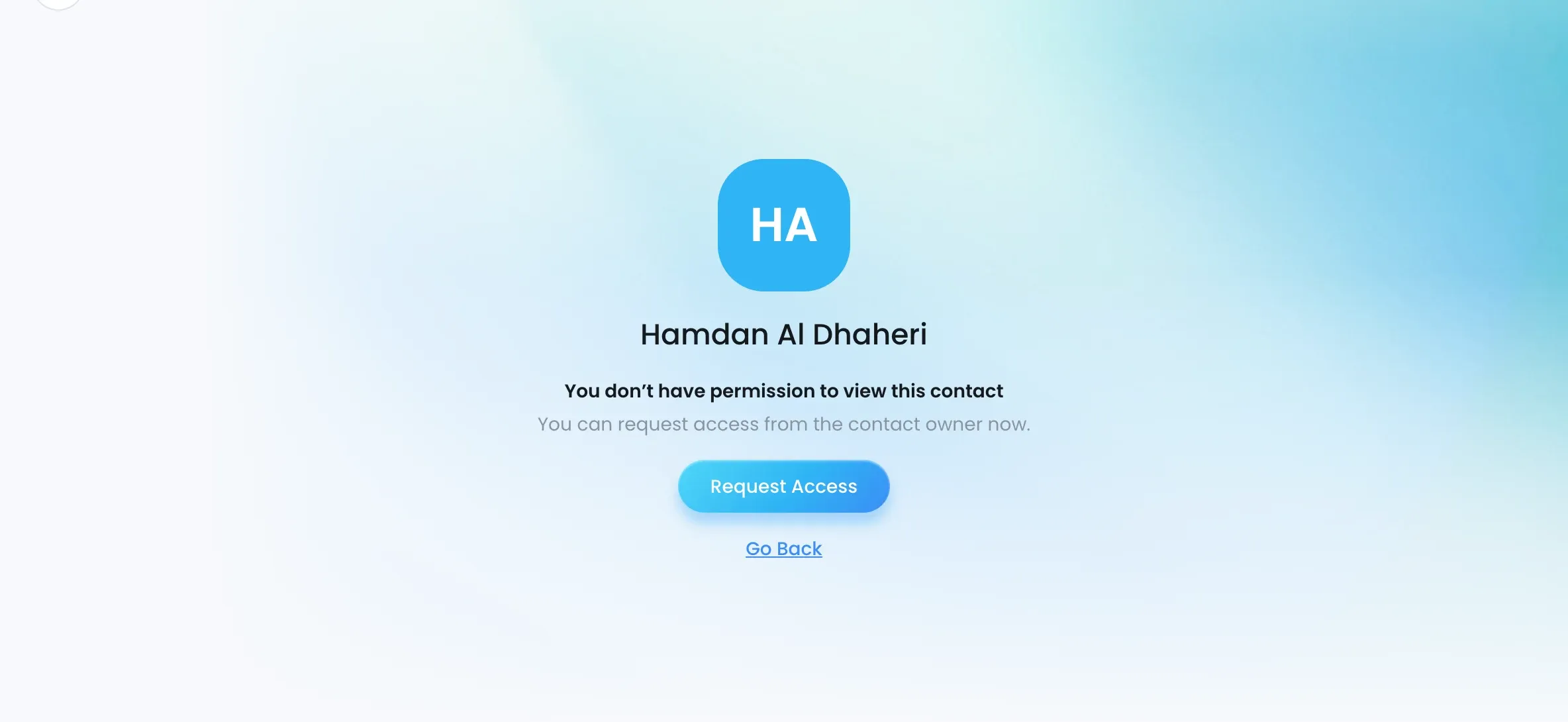
Open a contact outside your visibility and Lukkio shows the name, You don’t have permission to view this contact, and a Request Access button. Click it and the owner is notified.
If you are the owner, the requests come to you:
- Open Contacts and click Request at the right end of the tabs. The badge shows how many are waiting.
- Find the row on the Contact Requests page. It names the contact, who asked and when.
- Click the row’s ⋯ menu.
- Click Share to grant access, which opens the same Share Contacts dialog, or Cancel to decline.
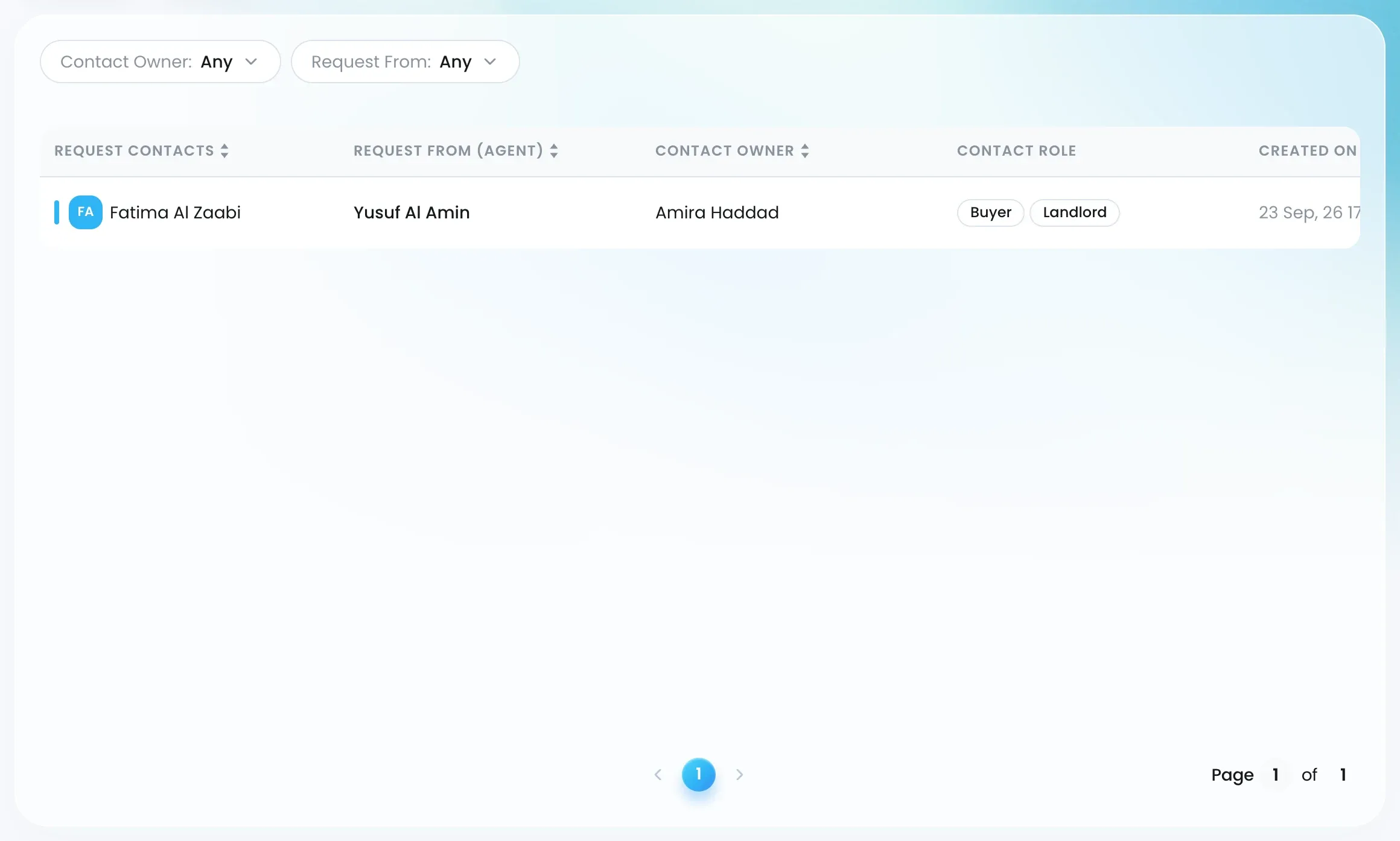
The person who asked is told either way.

