
Sometimes you know the answer before AI Match does. Manual Match folders are the shortlists you build yourself: the sea-view flats you keep for the right buyer, or the six units you want one client to see this weekend.
Create a folder
- Open Listing Match.
- Switch to Manual Match at the top right.
- Click + New Folder.
- Enter the Name.
- Click Save to Manual Match.
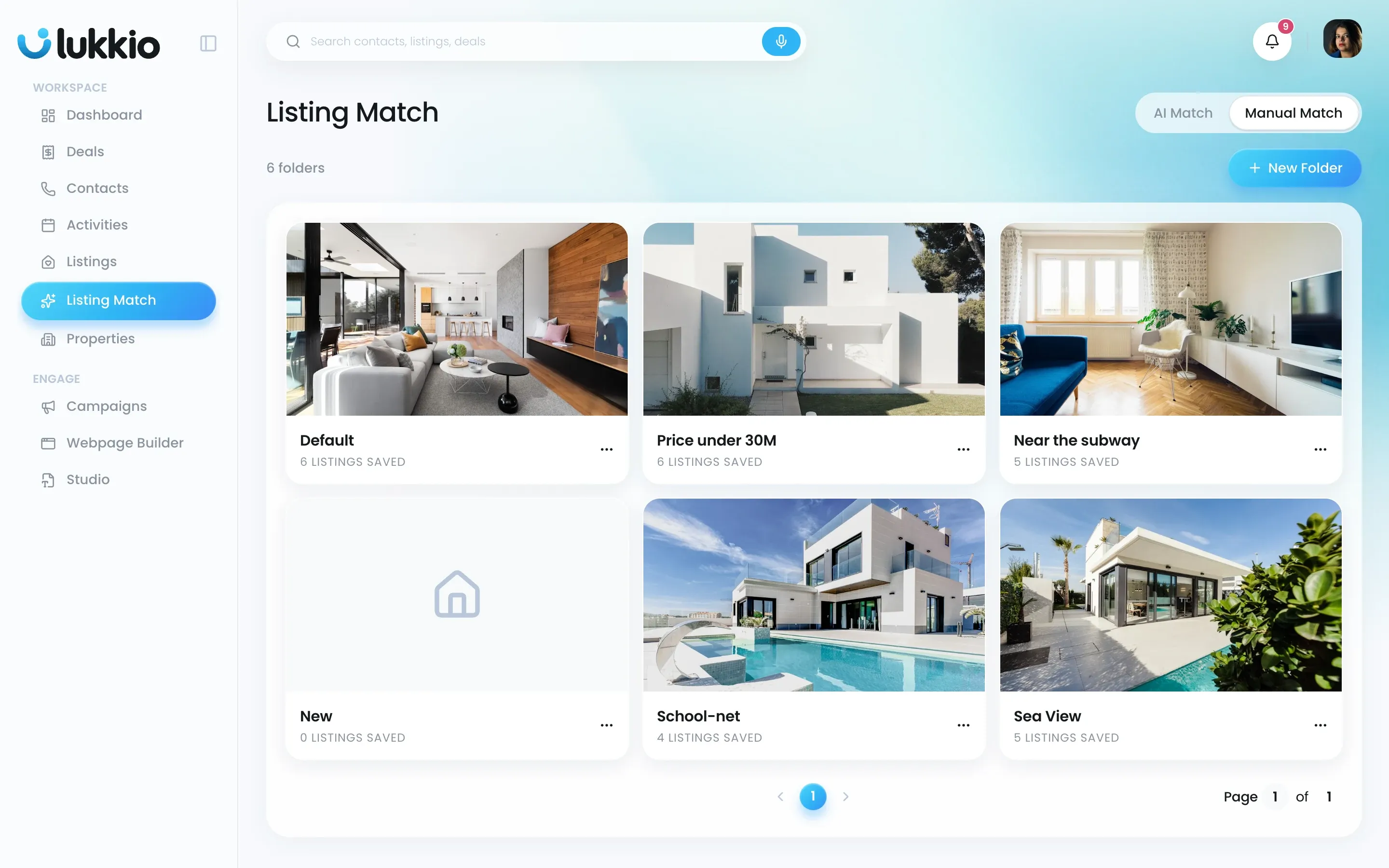
Every agent starts with a Default folder, which is where a listing goes when you bookmark it without picking a folder. Rename or delete any other folder from the ⋯ menu on its tile.
Save listings into a folder
From a listing:
- Open the listing.
- Click the bookmark icon at the top of the page.
- Tick each folder you want the listing in. Untick to take it out.
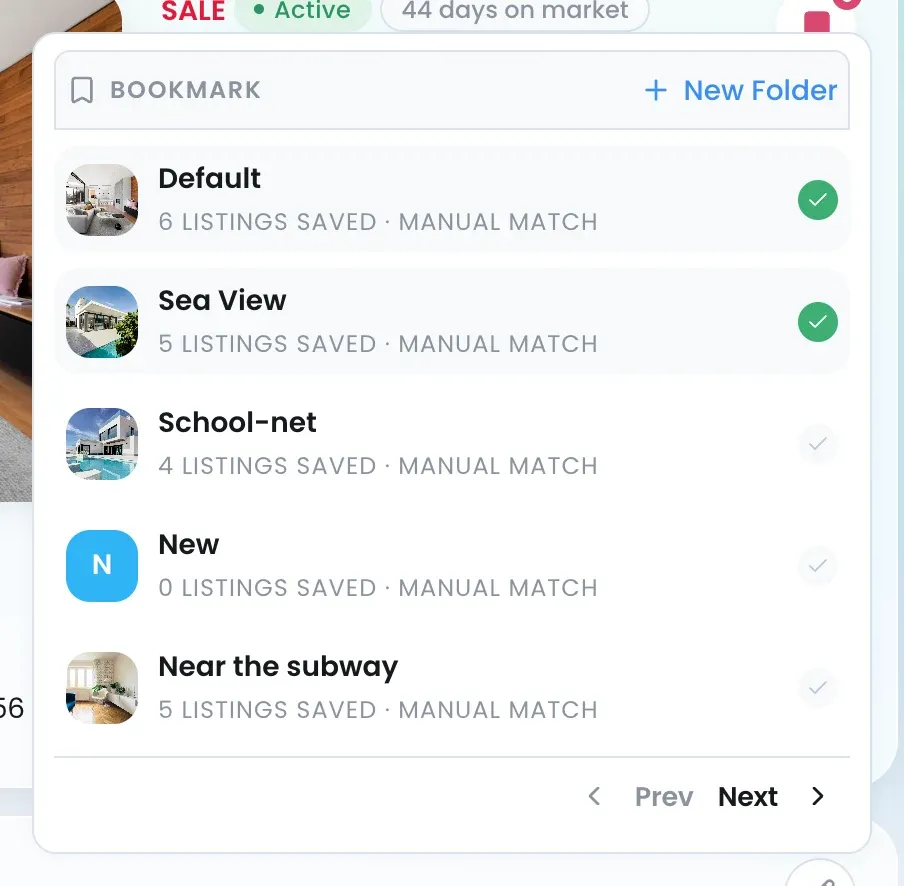
Click + New Folder inside the picker to create a folder and save the listing in one go. The same picker opens from the bookmark ribbon on a listing card in the Listings grid.
From the folder itself, click Add listing, search by name, unit, address or area, and pick the listing.
Work inside a folder
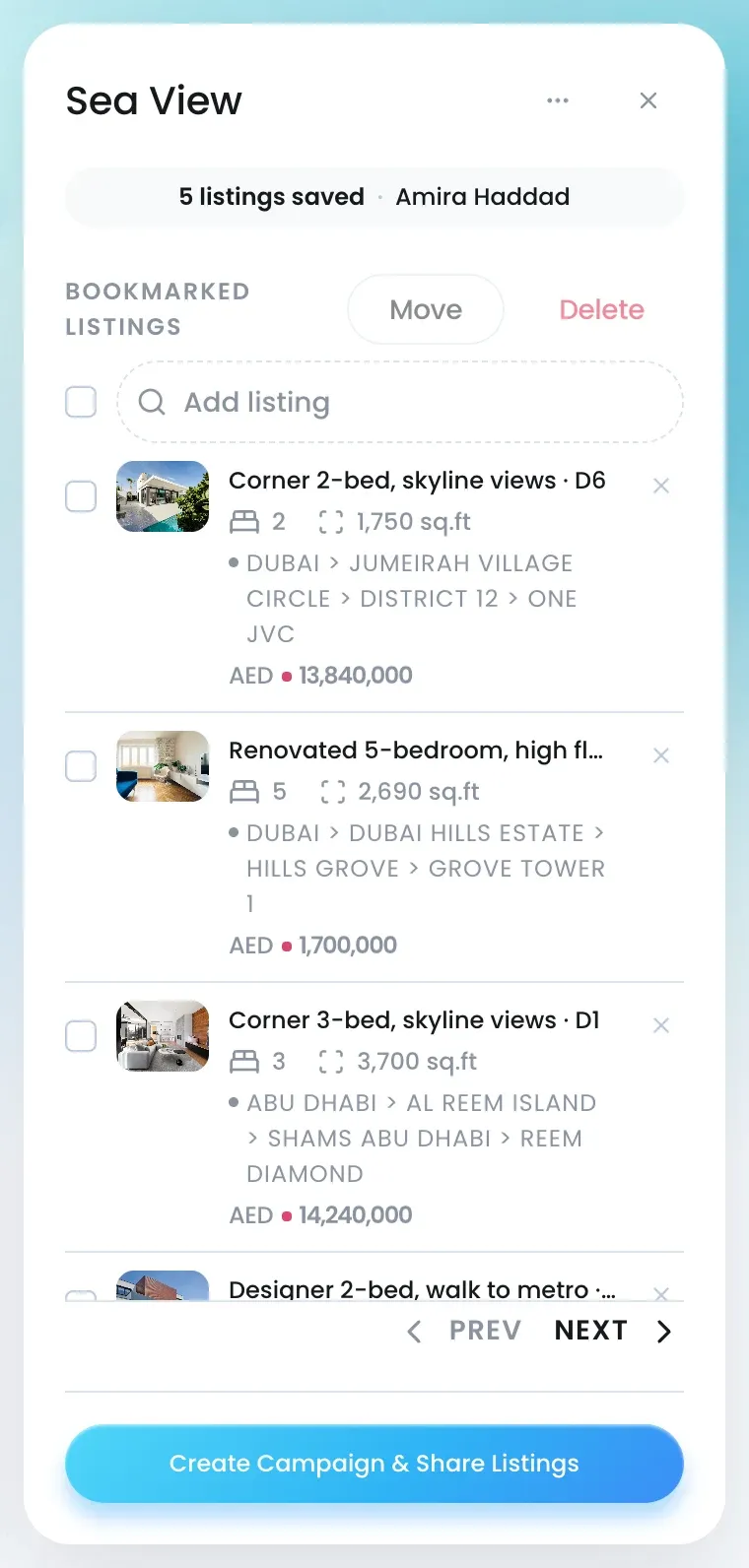
Click a folder tile and it opens on the right, with Bookmarked listings underneath the count and the owner’s name.
- Tick listings, then click Delete to take them out of this one.
- Click the × on a row to remove one listing.
- Use Prev and Next to page through a long folder.
- Click Create Campaign & Share Listings to send the whole folder to a client. See Turn a match into a campaign.
Who sees your folders
Your folders are private to you.

