
A contact in Lukkio is more than a name and a number. The guided form takes who the person is first, then what they are looking for, so AI Match can start working from the moment you save.
Before you start
- The person’s first and last name, their role, and a phone number or an email address. One of the two is enough.
- What they want, if you have it: budget, size, area and number of bedrooms.
Step 1: Basic Contact Info
- Open Contacts and start a new contact.
- Pick a Role: Buyer, Tenant, Landlord, Developer, or a custom role your agency has added. A person can hold more than one role, and each role adds its own step to the form.
- Enter the First name and Last name.
- Enter the Phone number. The country code is set to your agency’s market.
- Enter the Email address. You need a phone number or an email; one of the two is enough.
- Check the Status. A new contact starts as New.
- Pick the Source, so you know where the lead came from.
- Click Save & Next.
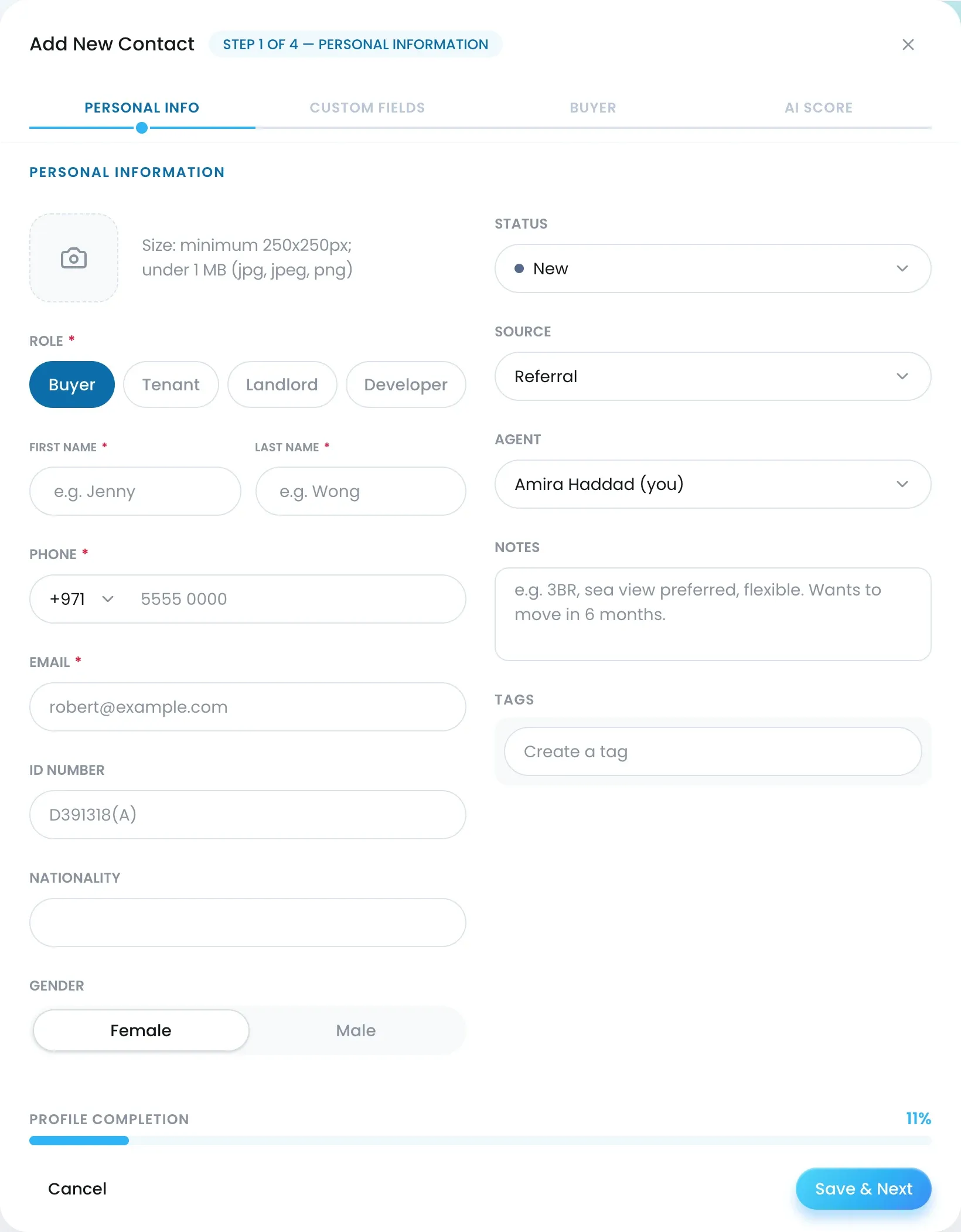
Agent is set to you. ID number, Nationality, Gender and Notes are optional, and add Tags if your agency uses them.
Step 2: custom fields
The Custom Fields step shows the extra sections your agency has set up for this role, such as Financial Details for a buyer. Fill in what you know and click Save & Next. A Super Admin, or a role with the Config permission, adds or changes these sections under Settings → Contact Roles (see Set up your agency’s lists).
Step 3: the buyer, tenant or landlord profile
The step is named after the role: Buy Profile, Rent Profile or Landlord Preference. For a buyer or tenant:
- Enter the Budget range and the Size Range the client wants. Both are required, because AI Match needs them.
- Choose the Preferred Property Type and add each Preferred Location.
- Set Bedroom, Bathroom, Living room, Balcony and Car park.
- Add the Features & amenities the client must have.
- Fill in Usage, Preferred Move-in Date and Preferred viewing days if you know them.
- Click Save & Next.
A tenant gets the same fields. A landlord’s step is shorter: Type (Sale or Rent), Preferred Viewing Days and Listing Preference (pick the landlord’s listings). A developer has no built-in profile, only the custom fields your agency adds. Contact roles and profiles explained covers what each field is for.
Step 4: Match Preference Weighting
The last step asks What are the client’s most pressing needs? Ten sliders, one per factor, all set to 5. Leave them as they are for now, or move the two or three that matter most to this client. Then click Save Contact.
Check what happened
- The new contact opens on its own page, with the profile under the role tab and a Prospect Match section ready to fill.
- The contact appears in the Contacts list.

