
Two cards on the dashboard keep your diary honest: Today’s Schedule for what’s on today, and Recent Viewings for the viewings around it. Anything you’ve let slip is flagged Overdue in both, and counted in the Overdue Activities tile above them.
Today’s Schedule
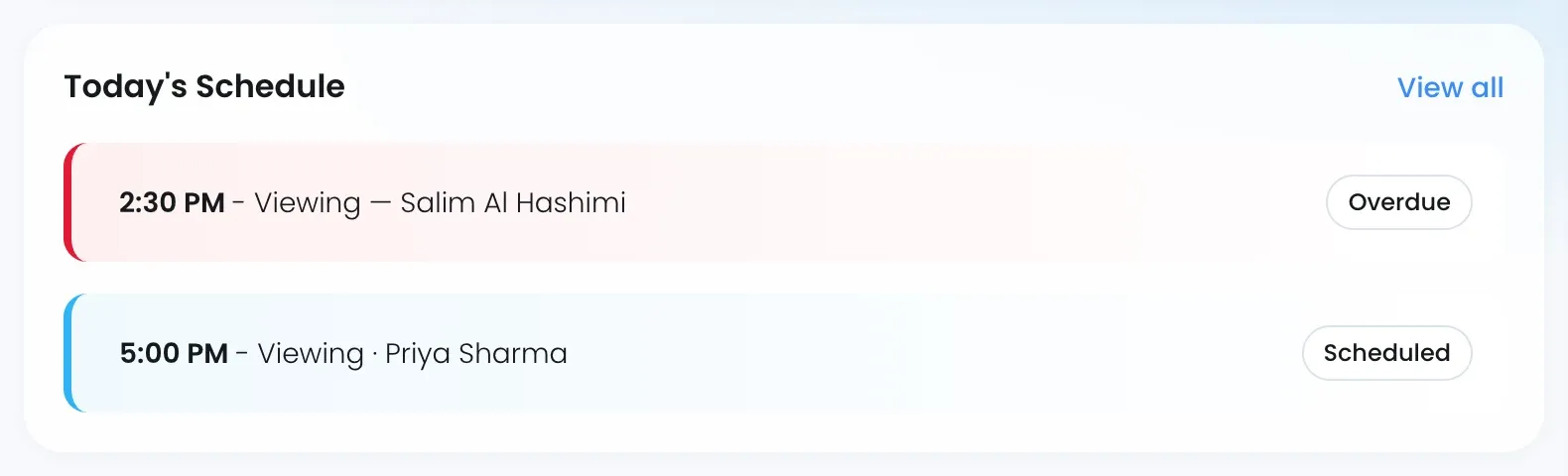
Each row is one activity due today, in time order: the start time, the title and a badge.
| Badge | Meaning |
|---|---|
| Scheduled | Still to happen |
| Overdue | Its time has passed without a result |
Overdue on the dashboard and the Due status in Activities mean the same thing: the activity is due, and the dashboard shows it as Overdue.
View all opens Activities, where the same items sit in the weekly calendar. See Plan your week in the weekly view.
Recent Viewings
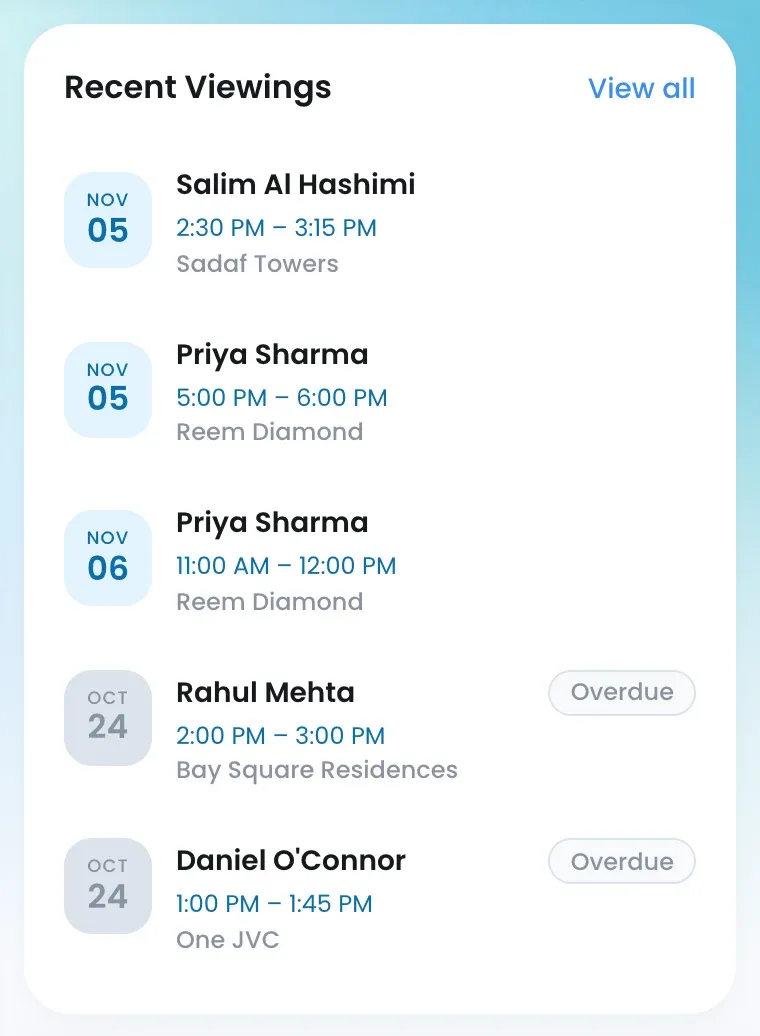
The right-hand panel lists your viewings: the date, the contact, the time range and the place. Viewings whose date has passed without a result show an Overdue tag, so you remember to record how they went.
To clear an overdue viewing, open it and use Mark as Completed, Mark as No-show or Mark as Cancelled. See Complete a viewing and record feedback.
Upcoming viewings
The Upcoming Viewings tile counts all viewings with status Scheduled. Open Activities for the calendar itself. To book a viewing from a listing, see Schedule a viewing from a listing.
Team’s Schedule
Team Leads and Super Admins who switch the dashboard to Team see Team’s Schedule instead: the same rows across every agent in scope. The viewings panel adds an Agent: line under each viewing.

