
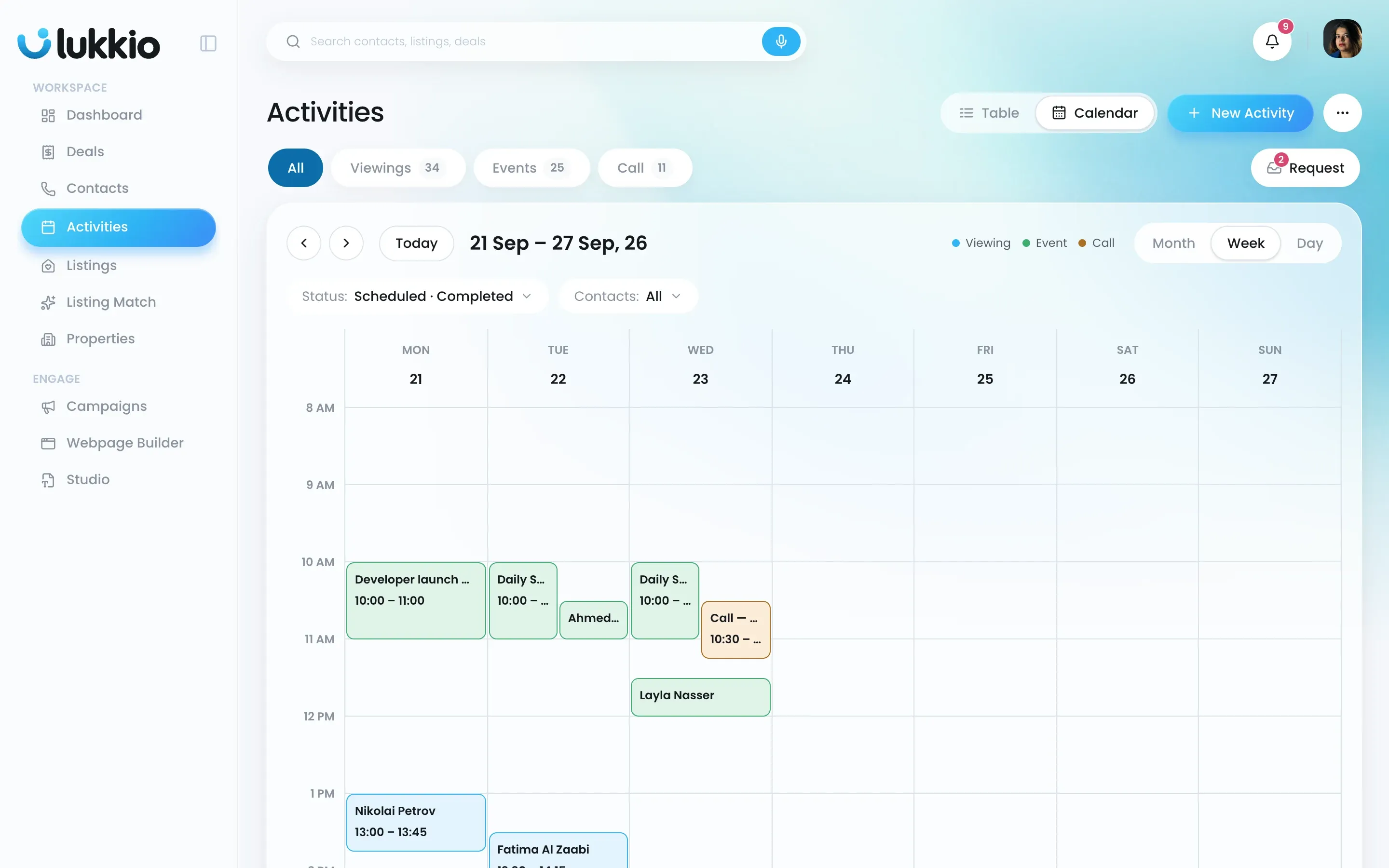
The calendar shows the same activities as the table, laid out by day. The week is the default range.
Open the week
- Open Activities.
- Click Calendar in the switch at the top right.
- If another range is showing, click Week.
Move around

- ‹ and › step one week back or forward.
- The title shows the range, for example “21 Sep – 27 Sep, 26”.
- Month shows a grid with each day’s activities listed. Day shows one column with room for every detail.
Read the grid
- Colour is the type: blue for Viewing, green for Event, amber for Call. The legend sits above the grid.
- Each block shows the contact’s name (for a call, the activity name), then the start and end time. Blocks have no location; click one for the details. A short activity shows the name only.
- A red line marks the current time in today’s column.
- Activities that overlap share the column side by side.
- A full-day activity fills its column.
Filter what you see
The filters under the toolbar work the same as in the table:
- Type: All, Viewing, Event or Call.
- Status: Scheduled, Due, Completed, Cancelled, No-show or Draft. Due is an activity whose time has passed without a result.
- Contacts: one or several.
- Agent: team leads and admins can pick one agent, or use ⋯ → Show my activities.
Open an activity from the calendar
-
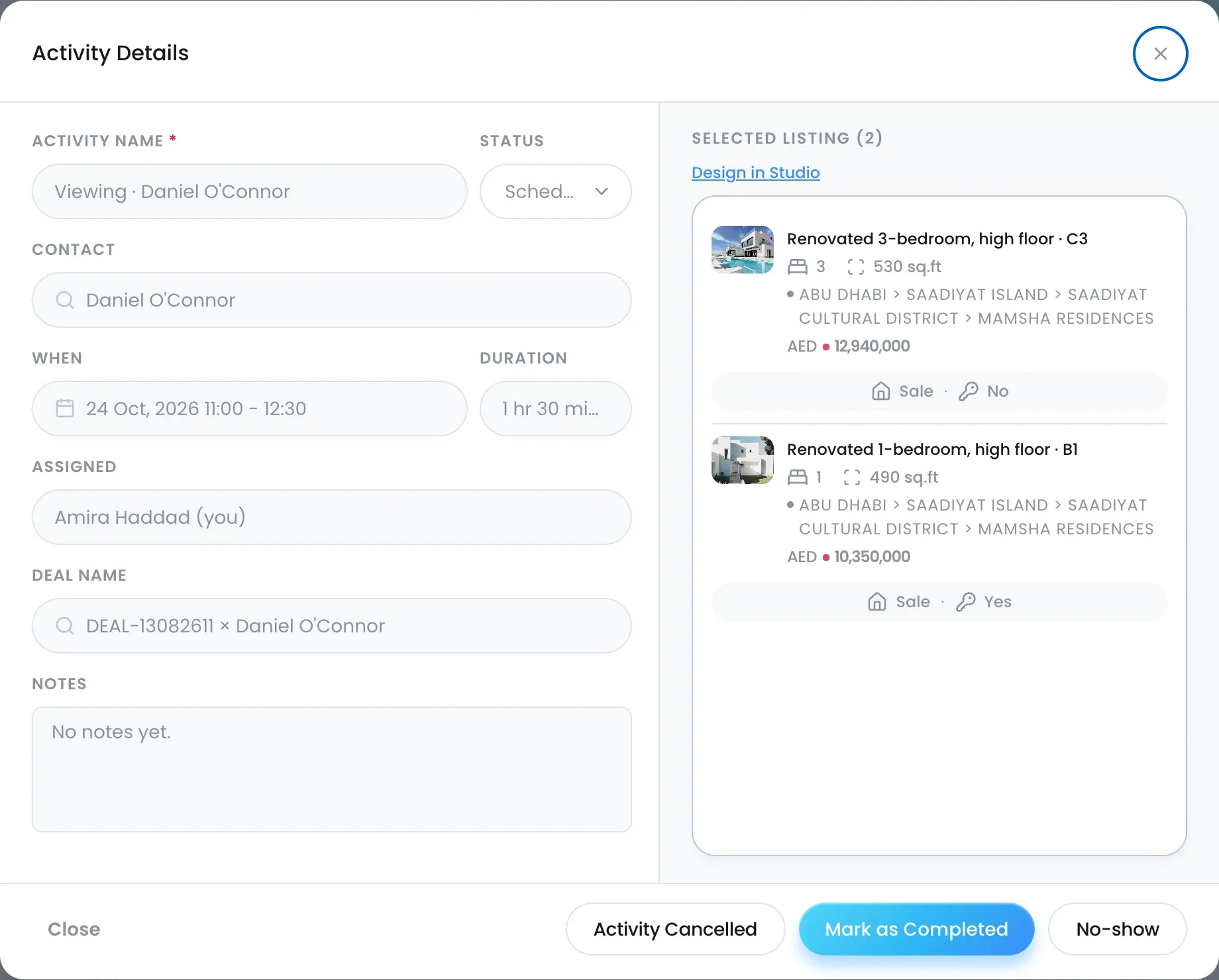
Click a block. Activity Details opens with the contact, time, deal, notes and listings.
-
Use Mark as Completed, Mark as No-show or Mark as Cancelled. See Complete a viewing and record feedback.
-
Edit the time, contact or listings in the same pop-up.

