
Lukkio has two deal pipelines: New Development and Resale Property. Both start with the same seven stages, and you set each one up separately: hide stages, add your own, and add the fields your team needs along the way.
Before you start
- You are a Super Admin, or your role has the Config permission. Only they can open Settings → Deal Stages.
- Agree the stage names with your team first. Stages show on every deal card and in the kanban columns.
The two pipelines
Open Settings → Deal Stages and use the switch in the top right to choose New Development or Resale Property.
Both pipelines start with the same seven stages:
| Step | Stage |
|---|---|
| 1 | New |
| 2 | Qualified |
| 3 | Viewing |
| 4 | Reserved |
| 5 | Contract |
| 6 | Close Won |
| 7 | Close Lost |
Changes you make to one pipeline do not touch the other.
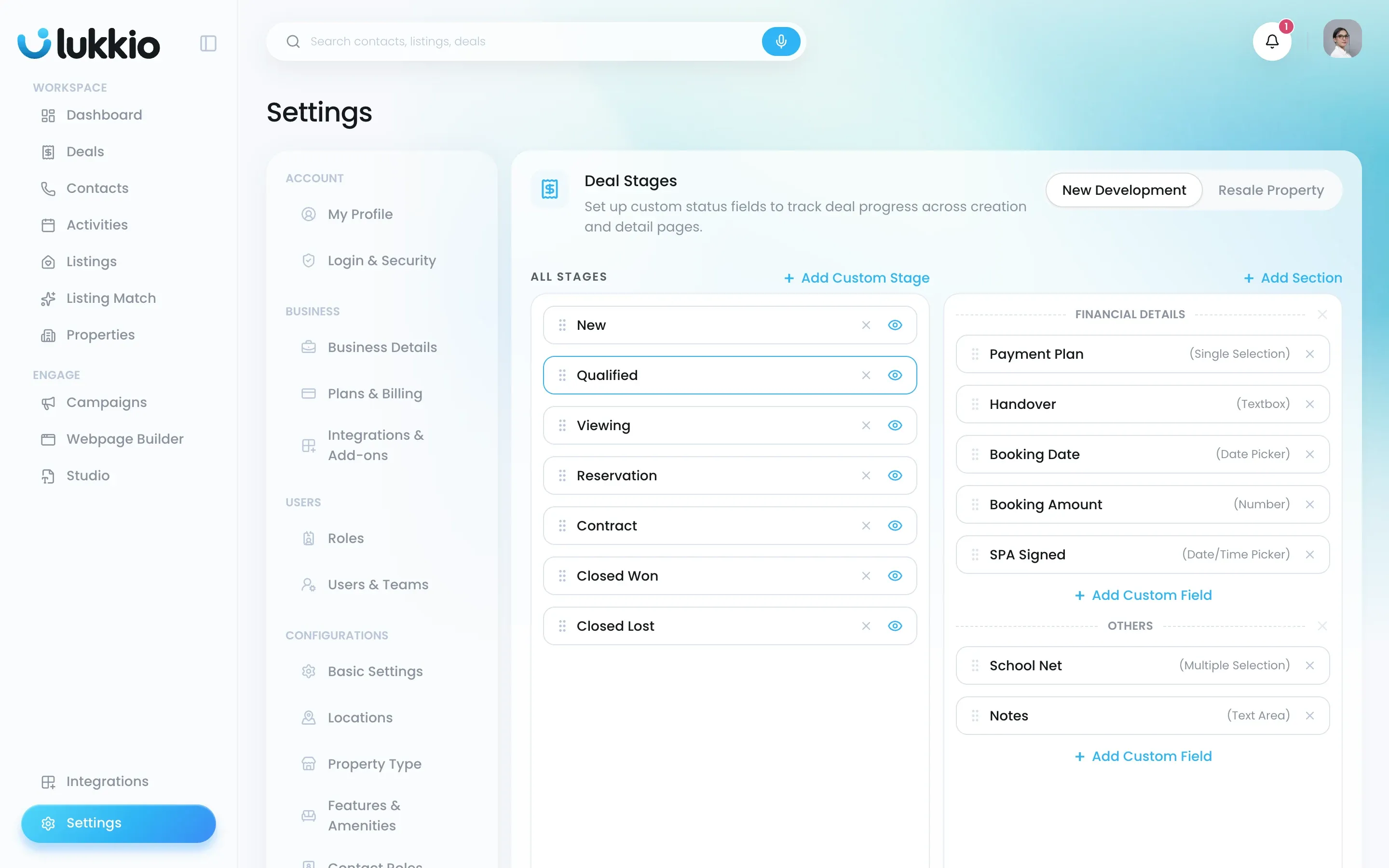
A deal follows the pipeline that matches its property type. See Move a deal through its stages for what each stage changes.
Reorder, hide or add a stage
- Choose the pipeline.
- Drag a stage by its handle to change the order.
- Click the eye icon to hide a stage you do not use.
- To add one, click + Custom Stage, enter the name and confirm.
The seven system stages cannot be removed, only hidden. A custom stage can be removed with the ×. Check the kanban for deals sitting in a custom stage before you remove it.
Add custom fields to a pipeline
The right-hand panel holds the sections and fields your team fills in on a deal. Lukkio starts each pipeline with Financial Details and Others.
- Click Add a section and name it to create a new group, or use an existing one.
- Click + Custom Field under the section.
- In Add Deals Field, name the field and choose the Field Type: Textbox, Text Area, Single Selection, Multiple Selection, Date Picker or Date/Time Picker. The two selection types add Option rows for the choices.
- Save the field. It appears in the section straight away.
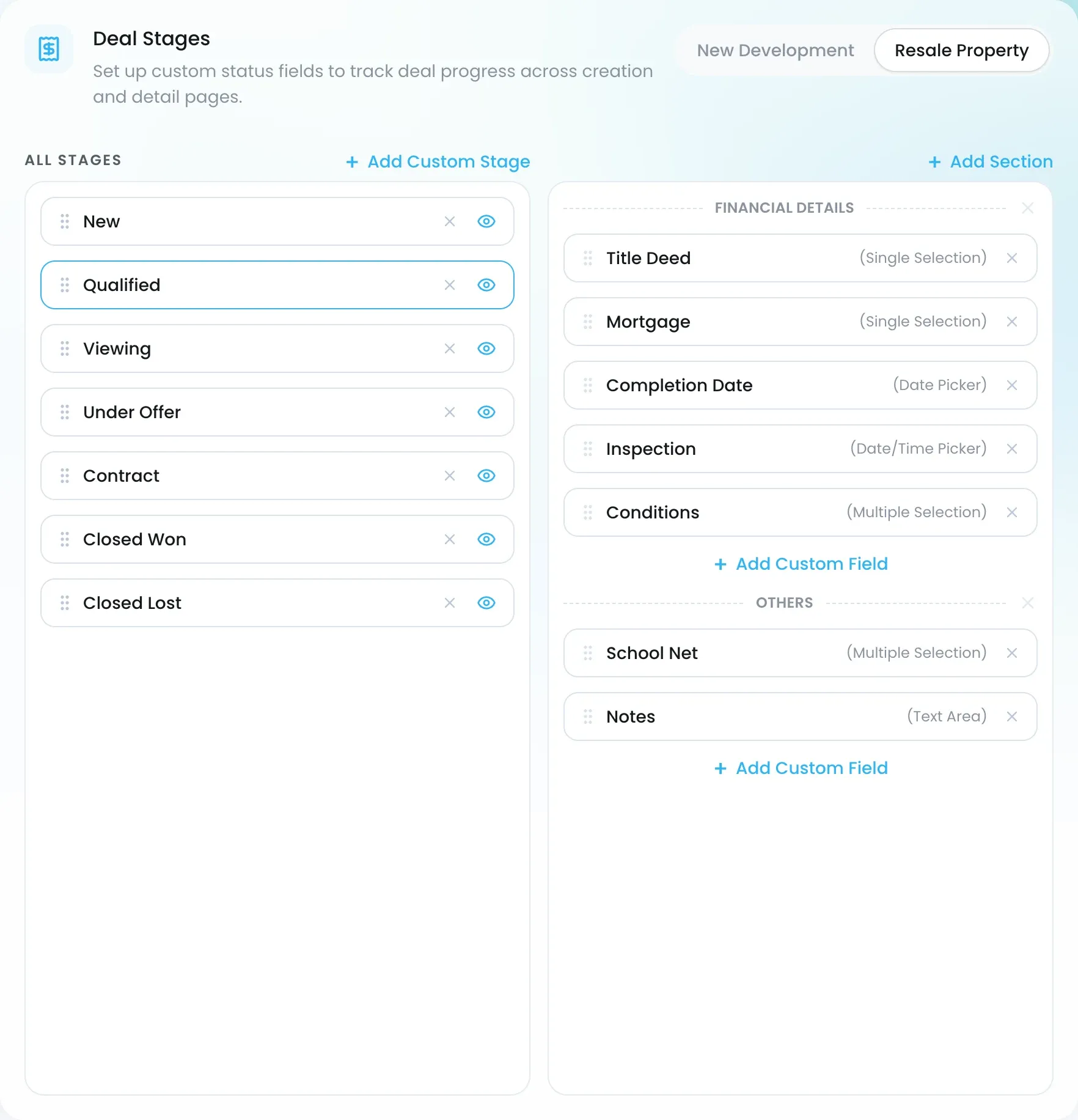
Select a stage to add the fields your team fills in at that stage. Each pipeline has its own stages and fields, so a new-development deal can ask for a Payment Plan and Booking Amount while a resale deal asks for Title Deed and Mortgage. The × removes a field or a whole section.
Where it shows up
- Deals: the kanban columns and the stage progress bar on each deal follow the pipeline’s stage list and order.
- Deal detail: custom sections appear as their own panels, with the field types you chose.

