
Lukkio is paid by credit or debit card, in advance, in one of three currencies. Payments run through Adyen, a payment provider, so your card details stay with them rather than with Lukkio: Lukkio keeps only the card brand, the last four digits and the expiry date.
Your billing currency
The currency follows where your business is based, which you choose when you sign up:
| Business location | Billing currency |
|---|---|
| United Kingdom | British pounds (GBP) |
| A European country | Euros (EUR) |
| United States, the UAE and every other country | US dollars (USD) |
Every charge, renewal, seat purchase and invoice is in that currency.
Add or change the card
- Open Settings → Plans & Billing.
- In Payment Method, click Update Payment Method.
- Enter the Credit Card Number, Expiry Date (MM/YY), CVV and Cardholder’s Name.
- Click Save. The card details go to Adyen, the payment provider.
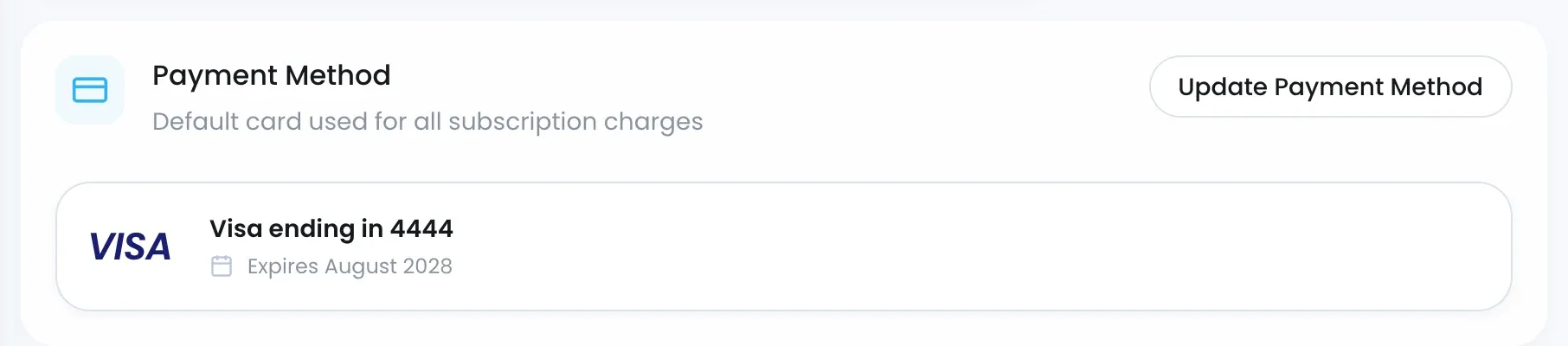
The card marked Default is charged for every renewal and every seat you buy. Payment Method shows its brand, last four digits and expiry date; update the card before it expires so a renewal does not fail.
If a payment fails
You receive a Your Payment Failed email, the invoice shows Failed, and the Super Admin sees a red banner on every page with Update Payment Method. Your team keeps full access while Lukkio retries the card: up to 3 times, on days 1, 2 and 3, with at most one email a day. No fee is added and the renewal date does not move. Saving a new card retries the failed charge at once.
If the last retry also fails, the whole subscription expires:
- The status card shows EXPIRED with a FAILED tag, (Payment Expired) and the date access runs until.
- Your users see the suspended page.
- The Super Admin can click Pay Now on Plans & Billing, or Reactivate. Once the payment goes through, access returns with all your data.
Your workspace data is kept for 180 days.
While a payment is outstanding, seats and add-ons cannot be added or reduced.
Invoices
Every charge produces its own invoice on the Invoices tab of Plans & Billing: the first charge, each renewal, each mid-term seat purchase and each reactivation.
| Column | What it shows |
|---|---|
| Date | The date the charge was taken |
| Invoice Number | The invoice number |
| Description | What was charged, such as Subscription for the first charge and each renewal, or seats bought mid-term |
| Payment Status | Paid or Failed |
| Amount | The charge, in your billing currency |
The list shows the past six months, newest first. Open the ⋯ menu on a row for View Details or Download Invoice. Upcoming charges are not listed; the next charge date and amount are on the Overview status card.
Who receives the invoices
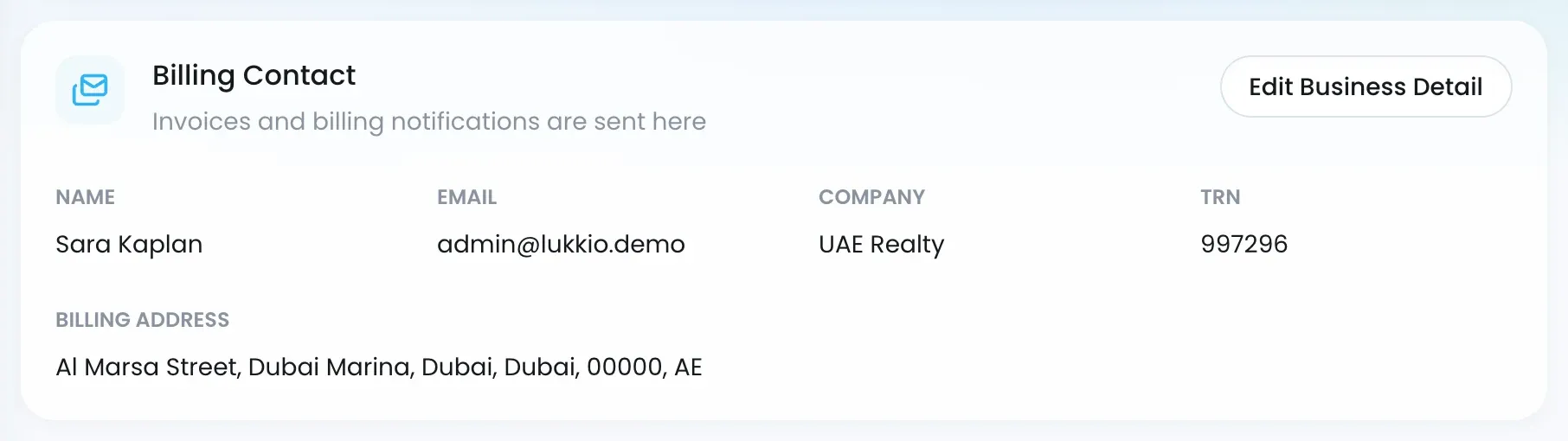
Invoices and billing notifications go to the Billing Contact shown on Plans & Billing, and to every Super Admin. The name, email, company, tax registration number and billing address come from Business Details; click Edit Business Details to change them.
Prices and terms
Prices are on the pricing page and exclude any sales tax or VAT that applies. Payment terms are in the Terms, and refunds in the Refunds and cancellation policy.

