
Every user in Lukkio has one role. The role decides two things: which modules the user can open and change, and whose contacts and deals they can see. Lukkio ships with four roles that cover most agencies. A Super Admin, or a role with the Role permission, can adjust them or add custom ones under Settings → Roles.
The four roles at a glance
| Role | Contacts and deals they see | What they can change |
|---|---|---|
| Super Admin | Everyone’s (All Users) | Everything, including Settings, users, roles and billing |
| Team Lead | Their own plus their team’s (Own + Team) | Records in every sales module |
| Agent | Their own, plus records shared with them (Own Only) | Contacts, listings, deals, activities and campaigns |
| Viewer | Their own plus records shared with them, read-only | Nothing |
Listings and properties are different. They are always visible to every user in the workspace, whatever the role. Only editing them is restricted.
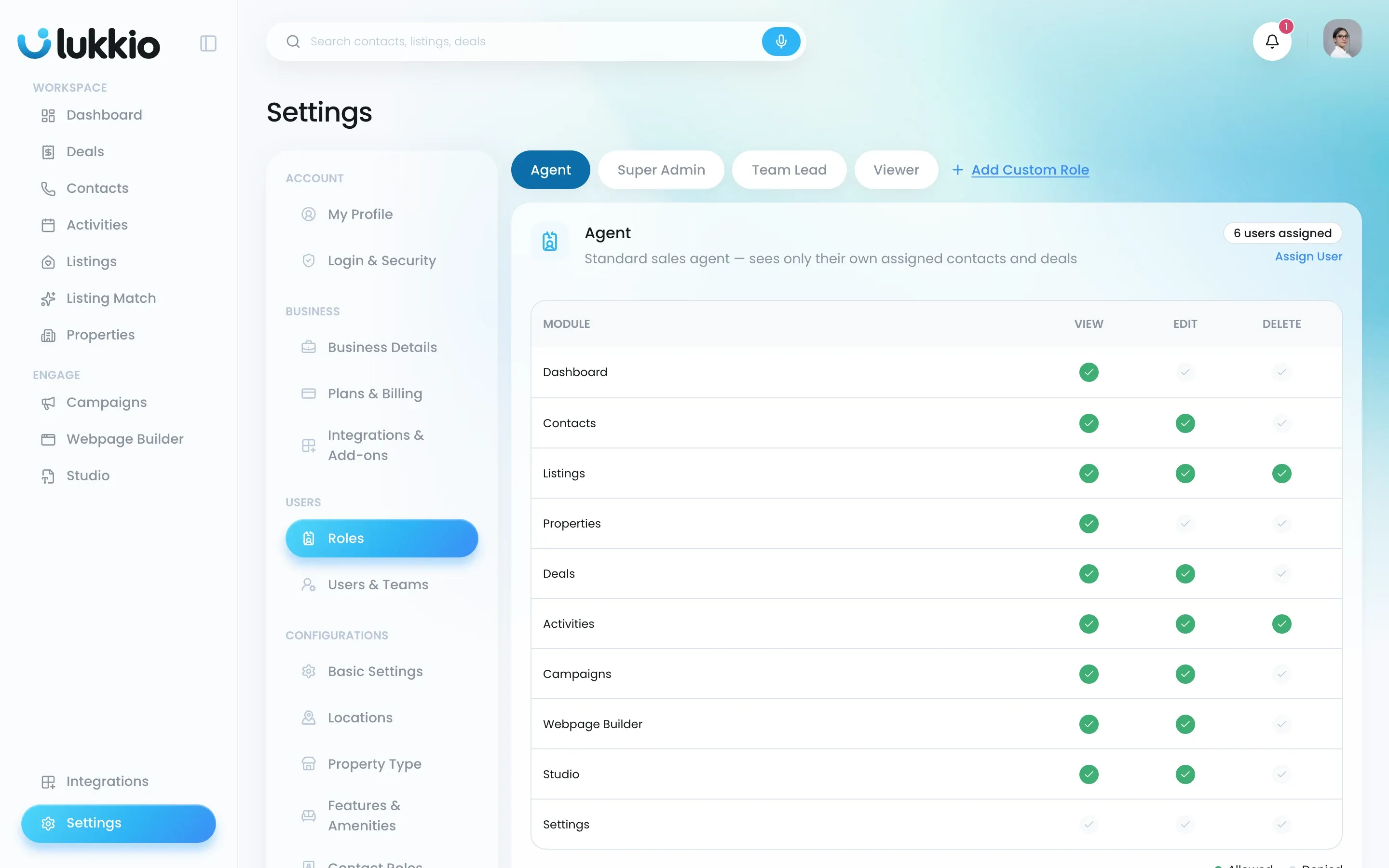
Module permissions
Each role has four actions per module: View, Add, Edit and Delete. Green means allowed, grey means denied. Config and Billing have View and Edit only.
There are 21 modules: Property, Unit, Listing, Listing Portal, Contact, Activity, Viewing Request, Deal, Campaign, Template, Role, User, Config, AI Writing Style, Billing, Page Builder and Studio, plus Broadcast, Broadcast Template, Integration and Message. Those last four rows are for the WhatsApp add-on only.
Admin work is not limited to Super Admins. A custom role can be given the User, Role, Config and Billing permissions.
A few rules keep the matrix consistent:
- The four built-in roles keep their names. Their permissions can still be changed, and Reset to Default brings them back.
- Save Permission applies the change to everyone on that role.
Data visibility
Below the permissions sits Data Visibility, saved with Save Visibility. It applies to contacts, deals, activities, campaigns, Webpage Builder pages and Studio sheets, and it is the setting that keeps one agent’s clients private from another.
| Setting | Who sees what |
|---|---|
| Own Only | Records assigned to the user. Records another agent shares with them also appear. |
| Own + Team | The user’s own records plus every record owned by agents in the teams they lead. |
| All Users | Every record in the company. Recommended for Super Admin only. |
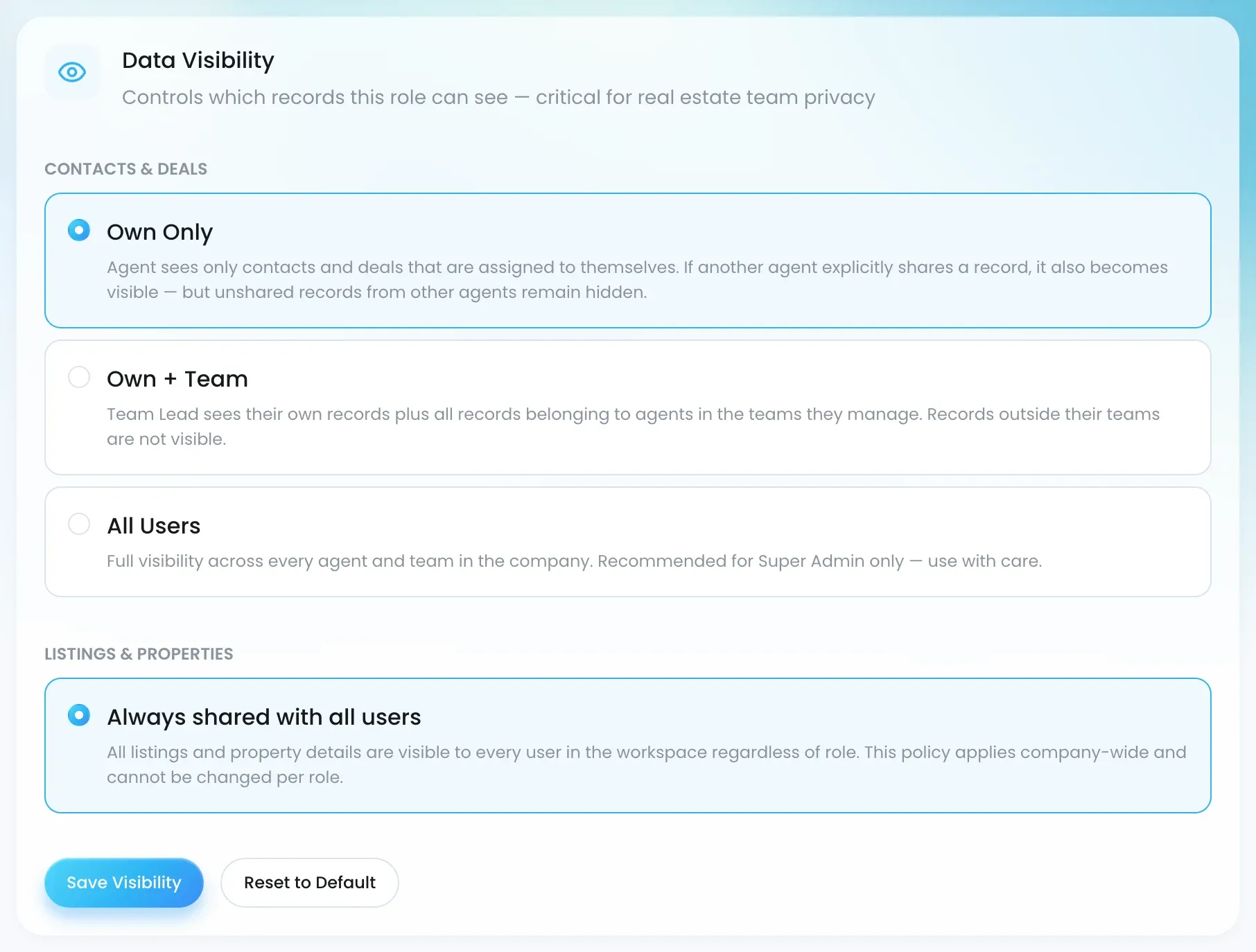
For how sharing and access requests work on top of this, see Data visibility and “Request access”.
Where you see a user’s role
- Settings → Users & Teams lists every user with their role, team and visibility.
- On the Roles page, each role shows how many users are assigned to it.

