
An activity is a call, a viewing or an event, with a time, a contact and, where it applies, a deal and listings. Log it once and it shows on the contact, on each listing, on the deal and in your calendar.
Where you can log one
- Anywhere: Log Activity in the top bar, at the right.
- Activities, then Add Activity.
- A contact’s page: Log Activity.
- A listing’s page: Log Activity with the Landlord in the landlord card.
- A deal’s page: the Scheduled Viewing tab, then Schedule Viewing. The contact and deal are filled in.
- A viewing request from a shared link: Schedule Viewing. See Handle viewing requests.
Log a call, viewing or event
-
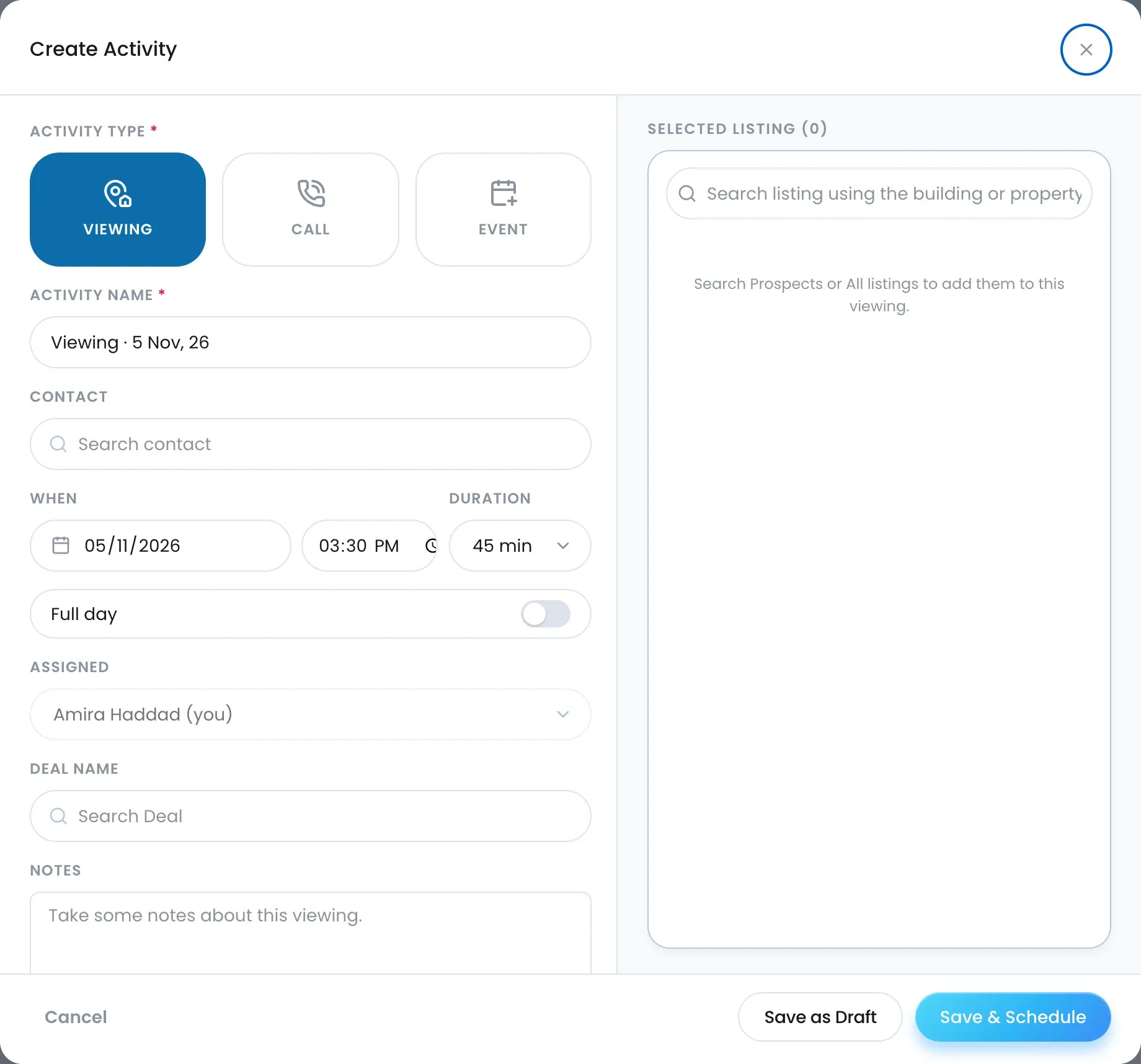
Open Activities and click Add Activity.
-
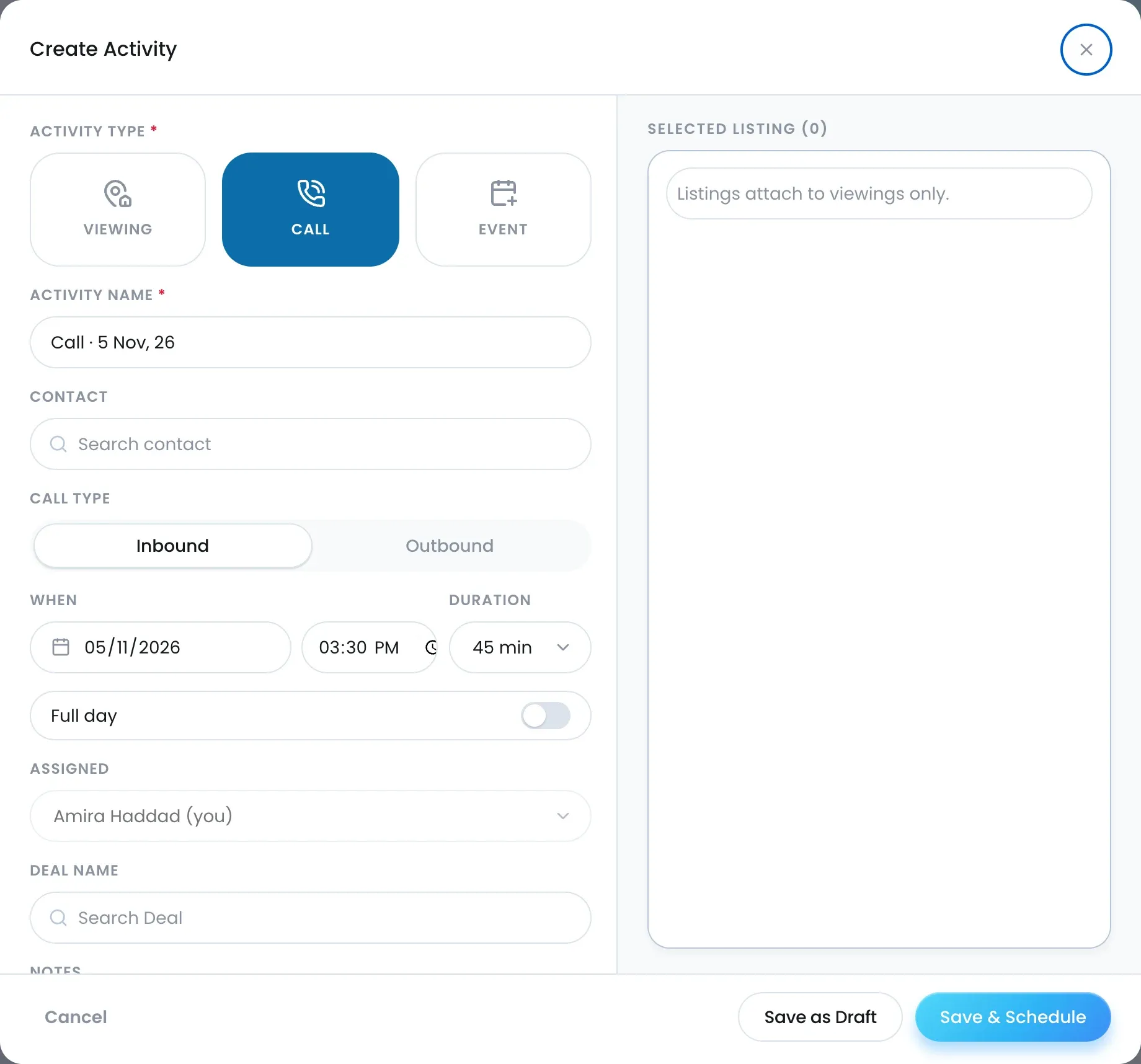
Choose the Activity type: Viewing, Call or Event.
-
Enter the Activity Name (required).
-
Pick the Contact.
-
For a call, set the Call type to Inbound or Outbound.
-
Set When with a date and start time, and pick a Duration.
-
Check the Assigned Agent.
-
Pick the Deal Name if the activity belongs to a deal.
-
For a viewing, add one or more Listings.
-
Add Notes.
-
Save the activity.
Statuses
An activity is Draft, Scheduled, Due, Completed, Cancelled or No-show. Due means the activity’s time has passed without a result; the dashboard shows these as Overdue. To close an activity out, see Complete a viewing and record feedback.
Edit or delete
Open the row’s ⋯ menu for View, Edit and Delete. Deleting removes the activity from the table and every calendar view and cannot be undone.
After the activity’s date has passed, its fields are read-only; you can only mark it Completed, No-show or Cancelled.
Where it shows up
- The Activities table and calendar.
- The Activities section on the listing, contact, deal or property it is linked to.
- The dashboard’s Today’s Schedule.

